
A tag does the work, a trigger says when, and a variable fills in the data. The tag sends an event to GA4 or Google Ads, the trigger fires it when something specific happens on your site, and the variable passes a value such as the page URL or the form name. Keep those three roles in mind, and Google Tag Manager stops looking like a wall of settings.
I have been setting up Google Ads and analytics for more than 9 years, and I work through Tag Manager in almost every account. Below I walk through each of the three parts, show how they connect, and build a working example that sends a lead to GA4.
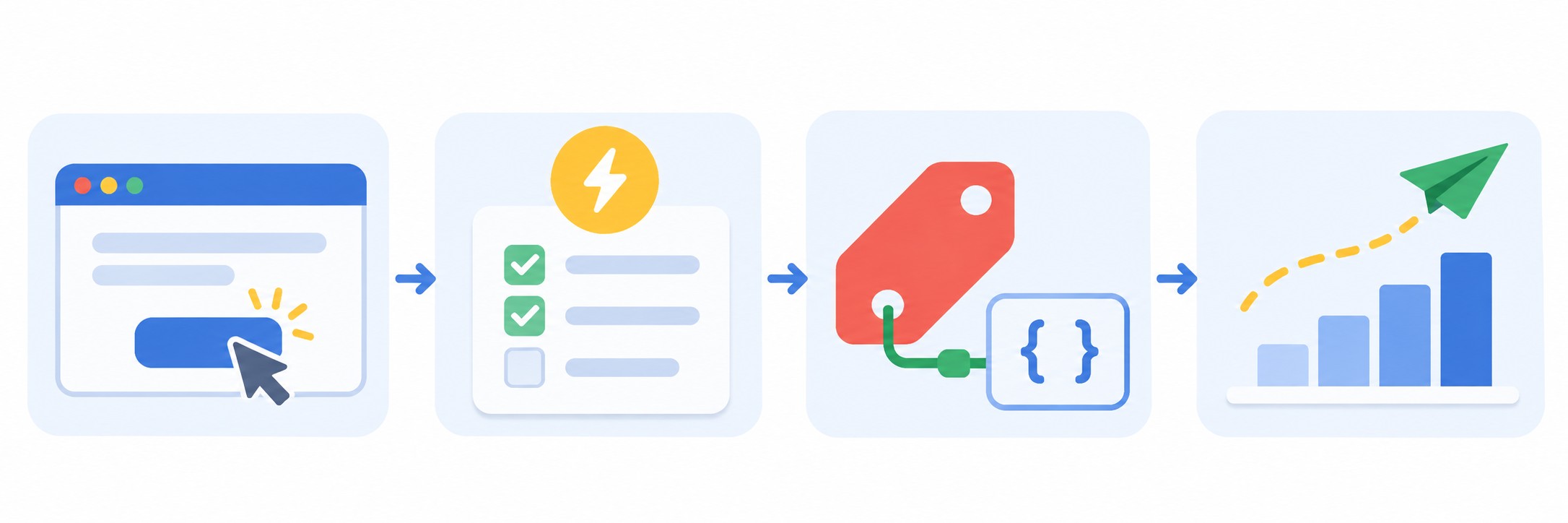
How tags, triggers and variables connect
Think of the post office. An addressed letter is the tag: it knows what to send and where. The rule “send it when someone presses the button” is the trigger. A line in the letter that fills itself in, like the recipient’s name, is the variable.
In practice the chain is always the same:
- Something happens on the site: a page loads, someone clicks, a form is submitted.
- Tag Manager sees that event and checks the conditions of your triggers.
- If the conditions match, the tags attached to that trigger fire.
- Each tag reads its variables and sends the data to the right service.
Two rules follow from this. A tag without a trigger never fires. And changes in the container do not reach your site until you publish them.
What a tag is
A tag is a snippet of code that runs on your site. In Tag Manager you do not write that code by hand, you fill in a ready template. These are the ones I use most:
- Google tag: the base GA4 setup on every page.
- GA4 event: sends a specific action, such as a lead.
- Google Ads Conversion Tracking: passes a lead or purchase straight into Google Ads.
- Google Ads Remarketing: builds an audience of visitors.
- Custom HTML: code from third-party services that have no template.
Name your tags clearly from day one. A year from now you will not remember what “Tag 7” does. I use a “service, action” pattern: “GA4, lead”, “Google Ads, call”. In larger containers this saves hours.
What a trigger is
A trigger is the condition that makes a tag fire. There are not many types, and they fall into simple groups.
Page view triggers
- Consent Initialization and Initialization: fire before everything else, used for consent settings and base tags.
- Page View: the page has started loading.
- DOM Ready: the page structure has been built.
- Window Loaded: the page has fully loaded, including images.
User action triggers
- Click: comes as All Elements or Just Links. This is how you track clicks on buttons and phone numbers.
- Form Submission: listens for the standard form submit event. It does not always work on JavaScript forms, so test it.
- Element Visibility: an element appears on screen, such as a “Thanks for your request” block.
- Scroll Depth and YouTube Video: engagement on the page.
Other triggers
- Custom Event: fires on an event your site pushes to the data layer. This is the most reliable option for forms and purchases, but it needs a developer.
- History Change: for sites where the URL changes without a page reload.
- Timer and JavaScript Error: for specific jobs.
- Trigger Group: the tag fires once every condition in the group has been met.
Conditions and exceptions
You can narrow any trigger. Under “This trigger fires on”, choose “Some” and set a filter such as “Page Path contains /contact/”. The tag then fires only on that page.
An exception does the opposite: it blocks the tag even if the main trigger fired. I use exceptions to exclude test pages, for example.
What a variable is
A variable is a value Tag Manager fills in automatically. In settings it appears as a name in double curly braces, such as {{Page URL}}. You use variables in two places: in trigger conditions and in tag fields.
Built-in variables
These are ready-made values from Google. Not all of them are on by default: open Variables, click Configure in the built-in section, and tick the ones you need. The most useful are:
- Pages: Page URL, Page Path, Page Hostname, Referrer.
- Clicks: Click URL, Click Text, Click ID, Click Classes.
- Forms: Form ID, Form Classes, Form URL.
If you built a click trigger and cannot see the field you need in the conditions, the cause is almost always a built-in variable that is switched off.
User-defined variables
You create these yourself when the built-in ones are not enough. The ones I reach for most:
- Constant: a value that repeats, such as a conversion ID. You change it in one place.
- Data Layer Variable: reads a value from the data layer, such as the order total.
- Lookup Table and RegEx Table: turn one value into another, such as a page URL into a service name.
- 1st Party Cookie and URL: read data from a cookie or the page address, such as a UTM parameter.
- DOM Element: reads the text of an element on the page.
Example: sending a form lead to GA4
Let’s put it together. The goal: when the form on the contact page is submitted, send a generate_lead event to GA4 with the form ID. Before you start, check that the base GA4 tag works on the site.
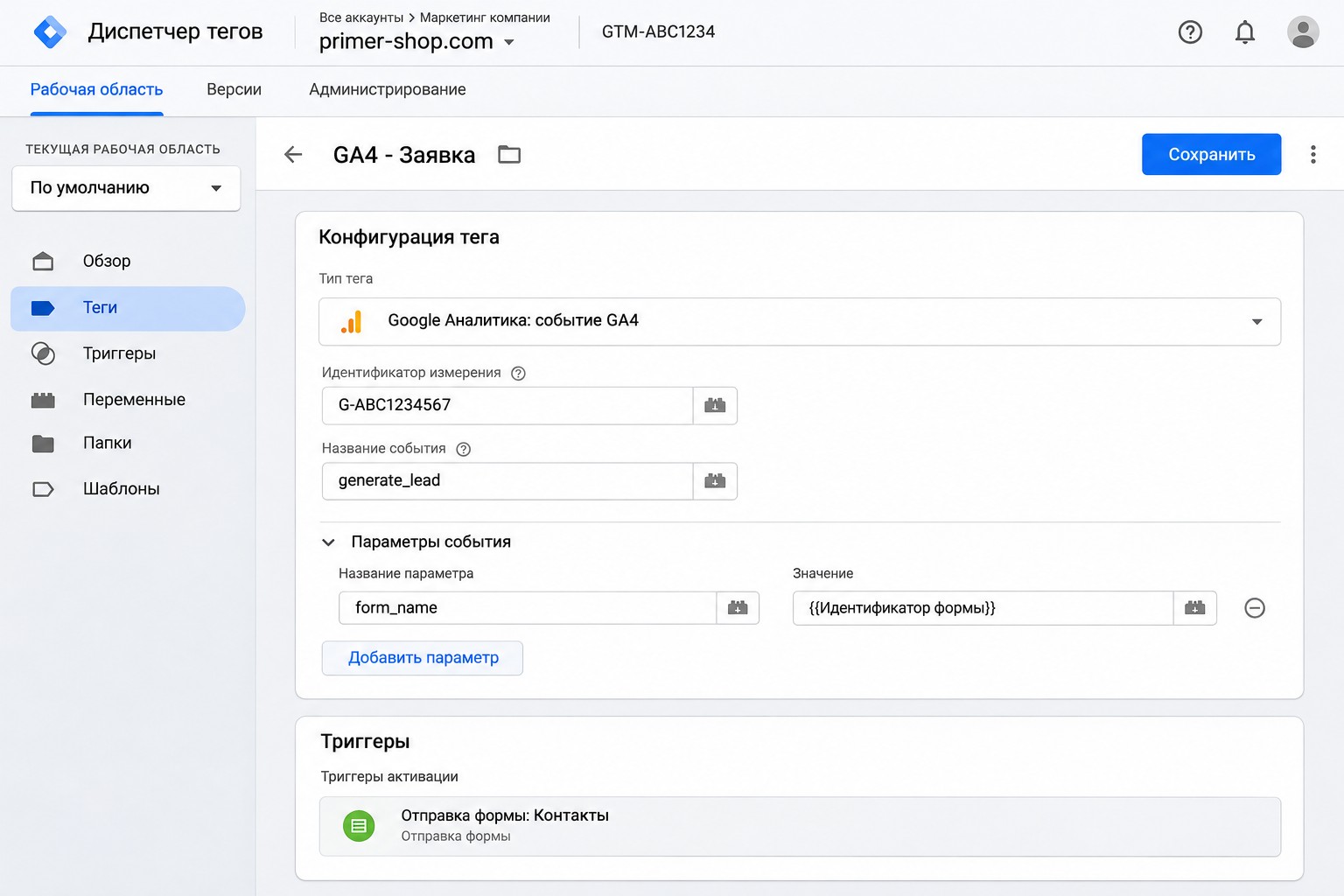
- Open Variables, click Configure, and enable Form ID, Form URL and Page Path.
- Open Triggers, click New, and choose Form Submission.
- Under the firing conditions choose “Some Forms” and set “Page Path contains /contact/”. Save the trigger with a clear name.
- Open Tags, click New, and choose the GA4 event tag.
- Enter your measurement ID (G-XXXXXXX) and the event name generate_lead.
- In the event parameters add form_name and set the value to {{Form ID}}.
- In the Triggering section choose the trigger you created, then save the tag.
- Click Preview, connect your site, and send a test request.
- In the Tag Assistant debug interface, check that the tag fired once.
- Click Submit, then Publish, and the container goes live for every visitor.
If the form submits without a page reload and the trigger does not fire, do not try to work around it. Ask a developer to push an event to the data layer after a successful submission and use a Custom Event trigger. That way you will not count failed attempts.
How to keep a container tidy
With five tags you do not need a system. With thirty, every change becomes a risk without one. This is what I do in every container:
- One naming pattern for tags, triggers and variables. A “Click, Telegram” trigger and a “GA4, Telegram click” tag read as a pair at a glance.
- Folders by service or task: GA4, Google Ads, remarketing, third-party tools.
- A clear version description on every publish. If something breaks, you can find the version at fault and roll back.
- Constants for IDs. A GA4 or conversion ID lives in one variable, not typed by hand into twenty tags.
- One check before every publish. Even a small change goes through Preview first.
A note on cookie consent: if you serve visitors from the EEA, set up consent mode early, because it decides what data your tags receive. The Consent Initialization trigger exists for exactly this job.
Common mistakes
- The container was never published. Everything works in Preview, but reports are empty. Check that you submitted and published the version.
- The tag fires twice. Usually it has two triggers, or GA4 is installed both through Tag Manager and directly in the site code.
- A broad trigger on all clicks. The tag fires on every press and the data turns to junk. Always narrow your conditions.
- The Form Submission trigger counts failed submissions. After setup, always submit the form with an error and see what happens.
- Messy names. Six months later nobody knows what does what. Set one naming pattern from the start.
- No recheck after site changes. You switched the page builder or the form, and the conditions stopped matching.
If you would rather not do this yourself, I offer analytics setup as a done-for-you service. And if you are auditing the ad side too, my Google Ads checklist covers what to look at.
FAQ
Can one tag fire from several triggers?
Yes. If you add several in the Triggering section, the tag fires when any of them is met. If you need all conditions to be met together, use a Trigger Group.
What is the difference between a trigger and an event?
An event is what happened on the site. A trigger is your rule that listens for events and decides whether to run a tag.
Do I need a developer to use Tag Manager?
Not for clicks, page views and simple forms. You need a developer for the data layer, which means purchases with an order total and complex forms.
How many tags can a container hold?
Container size is limited, but a typical site is nowhere near that limit, and Tag Manager warns you when a container gets too large. What matters more is that each extra tag slows the site down. Every six months I remove tags from old vendors and finished promotions.
Conclusion
Remember three questions: what to send (tag), when to send it (trigger), and which data to fill in (variable). Start with one simple event, test it in Preview, and only then publish. Every other setup follows the same pattern.
If you are not sure your analytics counts correctly, request a free express audit: I will review the account and tell you what to fix first. I also post no-fluff Google Ads and analytics breakdowns on my YouTube channel.