UTM tags are parameters at the end of a link that tell Google Analytics where a visitor came from. A good tag includes at least three parameters: utm_source (where from), utm_medium (which channel) and utm_campaign (which campaign), with every value written in lowercase and following one naming template. For Google Ads you usually don’t need them, because auto-tagging does the job.
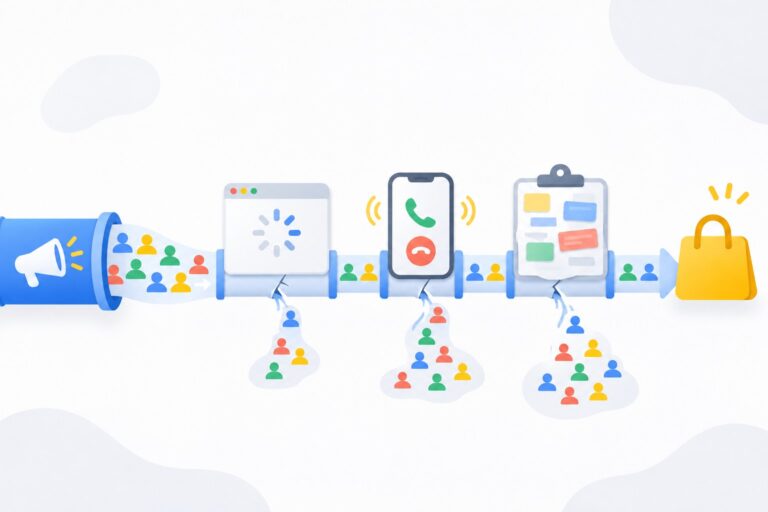
I’ve been setting up Google Ads and analytics for more than 9 years, and almost every audit shows the same picture: the email newsletter is tagged three different ways, some social traffic sits under direct, and the reports have dozens of rows nobody can make sense of. Below I’ll show how to build tags so your reports stay clean from day one.
What UTM tags are and why you need them
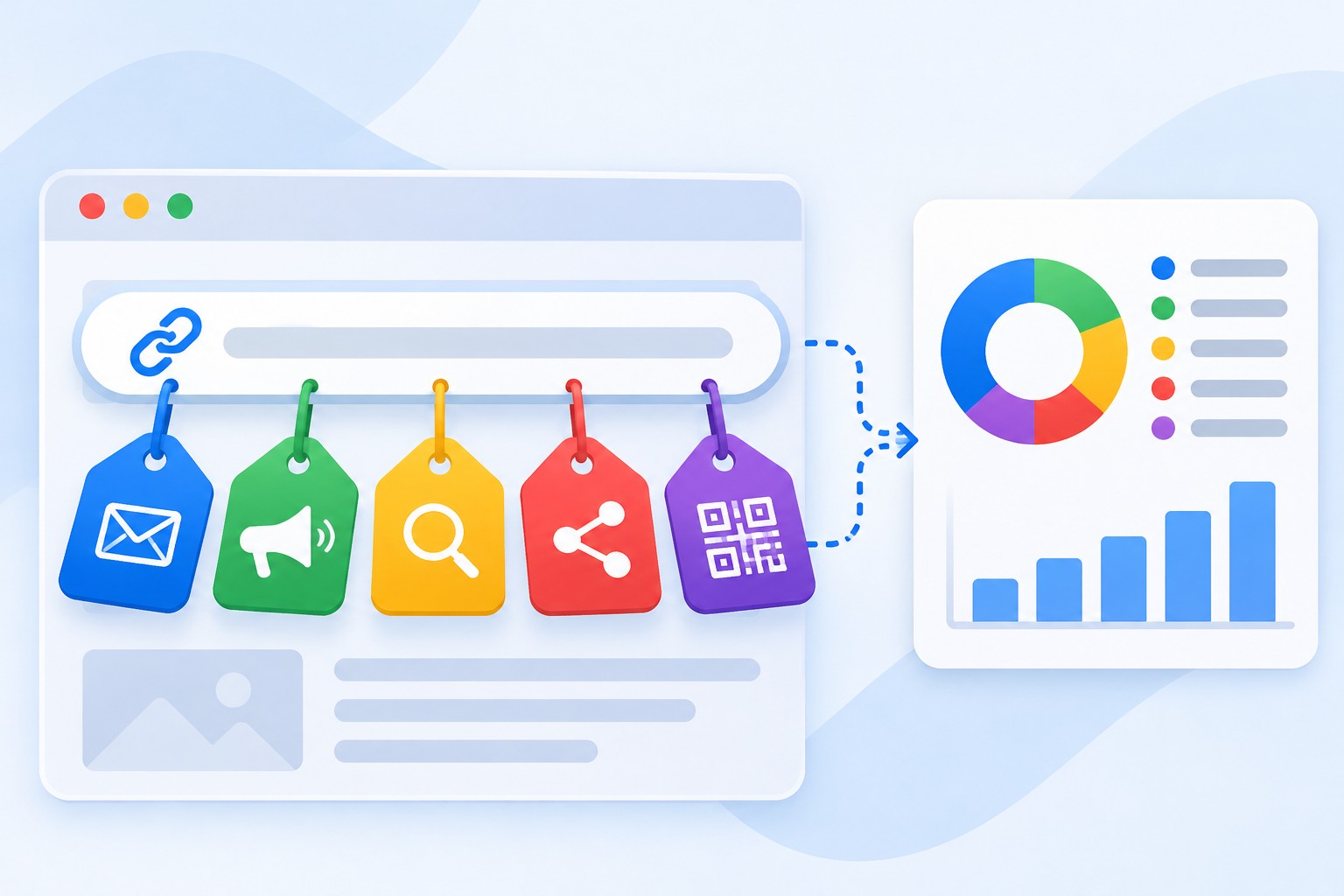
When someone lands on your site, the browser doesn’t always say where they came from. Clicks from messengers, mobile apps, PDF files or QR codes often look like direct traffic. UTM tags solve this: you label the link yourself, and GA4 records the source, medium and campaign from that label.
You need tags wherever you place a link to your site and want to see the result:
- email newsletters;
- social media posts and ads;
- links in Telegram channels and group chats;
- QR codes on flyers, packaging and business cards;
- influencer and partner placements;
- ad platforms without a built-in GA4 integration.
What a link with UTM tags looks like
Tags go after the page address. The first parameter follows a ?, and the rest are joined with &. Example:
https://primer-shop.com/sale?utm_source=newsletter&utm_medium=email&utm_campaign=black_friday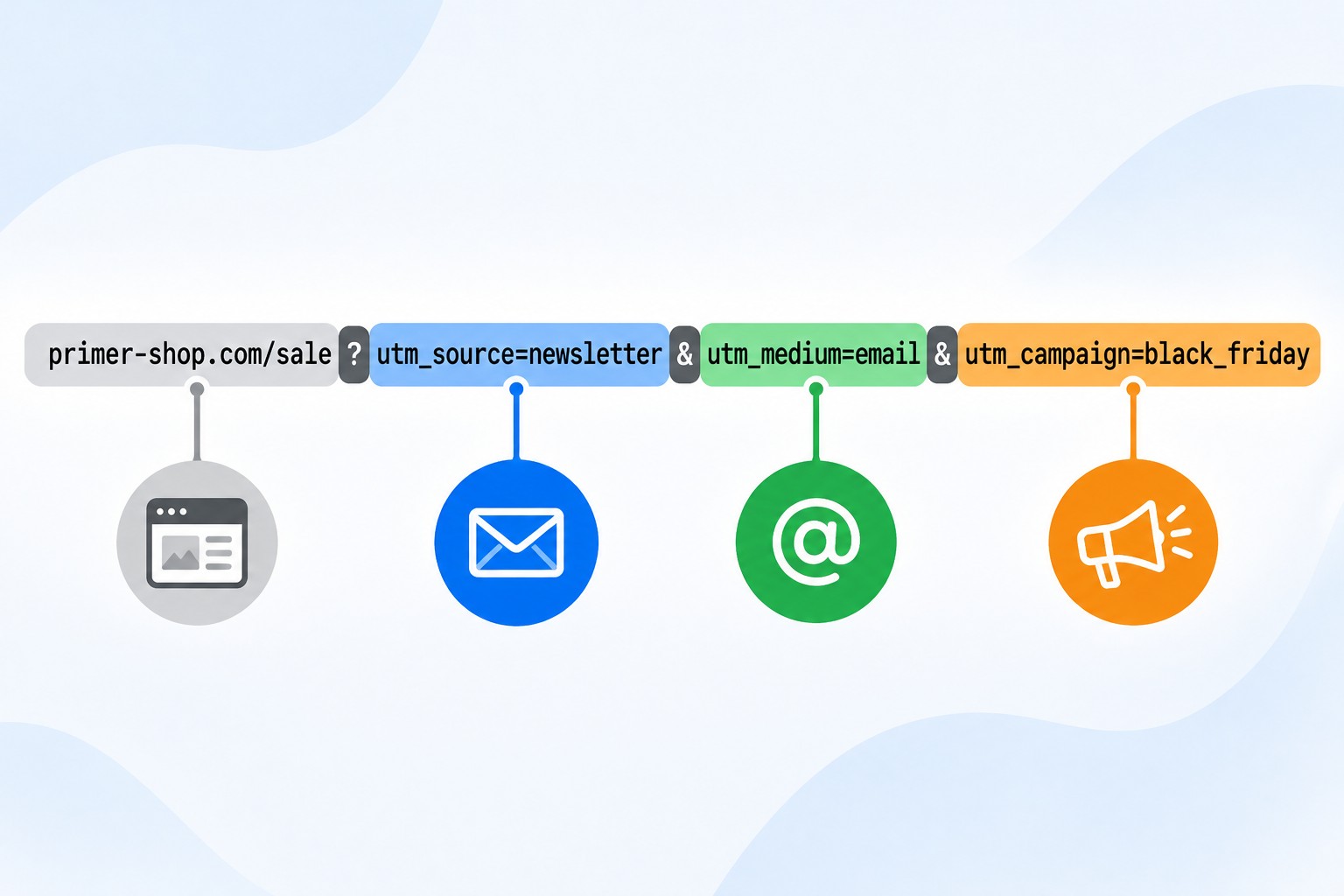
If the address already contains a ? (for example ?page=2), add the tags with &. Never use a second question mark.
Which parameters exist and which are required
Google’s Analytics help recommends always using three parameters: utm_source, utm_medium and utm_campaign. Add the others when you need them.
- utm_source: where the visitor came from. For example
newsletter,instagram,partner_site,flyer. - utm_medium: the channel or traffic type. For example
email,social,paid_social,cpc,qr,referral. - utm_campaign: the campaign, promotion or product name. For example
black_friday,spring_sale,new_collection. - utm_content: what differs between links in the same campaign. For example
button_topandbutton_bottomin one email, or different creatives. - utm_term: the keyword, if the platform can pass it.
- utm_id: the campaign ID. You need it if you import cost data from other platforms into GA4.
- utm_source_platform: the platform used to buy the ads.
There are also utm_creative_format and utm_marketing_tactic, but according to Google’s help, GA4 doesn’t show them in reports yet.
The rules I follow when building tags
The goal isn’t just to add a tag, it’s to make sure the report is still readable six months from now. These are the rules I use for my own projects and for clients.
- Lowercase only. GA4 is case-sensitive:
newsletterandNewsletterbecome two different rows in your report. - Latin letters, numbers, underscores and hyphens only. Non-Latin characters turn into long codes like
%D0%B0, which are hard to read and some services break them. - No spaces. Use
_instead. - Always name the same source the same way. Decide once,
instagramorig, and stick with it. - Use standard values in utm_medium. GA4 assigns traffic to default channel groups based on
utm_mediumandutm_source. If you writeutm_medium=newsletter-post, the traffic may end up as “Unassigned”. Useemailfor newsletters,socialfor organic social posts, andpaid_socialorcpcfor paid social ads. - Keep a tag log. A simple Google Sheet with columns for date, source, medium, campaign and full URL. It’s a lifesaver when several people create tags.
UTM examples for different channels
Templates you can use as a starting point:
- Email newsletter:
utm_source=newsletter&utm_medium=email&utm_campaign=black_friday - Organic Instagram post:
utm_source=instagram&utm_medium=social&utm_campaign=new_collection - Facebook ad:
utm_source=facebook&utm_medium=paid_social&utm_campaign=retargeting_nov - Telegram channel post:
utm_source=telegram&utm_medium=social&utm_campaign=promo_week - QR code on a flyer:
utm_source=flyer&utm_medium=qr&utm_campaign=store_opening - Influencer placement:
utm_source=blogger_name&utm_medium=influencer&utm_campaign=autumn_promo
Tags matter most for QR codes: without them, the visit is almost always recorded as direct.
How to build a link quickly
Building links by hand is tedious and error-prone: it’s easy to miss an &, add a second ? or leave a space. Any UTM builder will help, including Google’s own Campaign URL Builder. Whatever tool you use, the workflow is the same:
- Paste the address of the page the link should lead to.
- Fill in
utm_source,utm_mediumandutm_campaignusing your naming template. - Add
utm_contentandutm_termif needed. - Copy the final link and open it in a browser: the page should load without errors.
- Add the link to your tag log.
Do you need UTM tags in Google Ads?
Usually not. Google Ads has auto-tagging: a gclid parameter is added to every click, and GA4 gets much more data from Google Ads than tags can provide, including campaign, ad group and keyword. To check that it’s on:
- In Google Ads, click the “Admin” icon.
- Select “Account settings”.
- Open the “Auto-tagging” section and make sure the box to tag the URL people click through from your ad is checked.
If you do add UTM tags to Google Ads with auto-tagging on, GA4 still takes source, medium and campaign from auto-tagging. So there’s no need for them, and incorrect tags only add confusion. The exception is when you need Google Ads data in a third-party analytics tool or CRM that doesn’t understand gclid.
Where to see UTM data in GA4
In GA4, open “Reports”, then “Acquisition” and “Traffic acquisition”. In the table, choose the “Session source / medium” dimension, and “Session campaign” for campaigns.
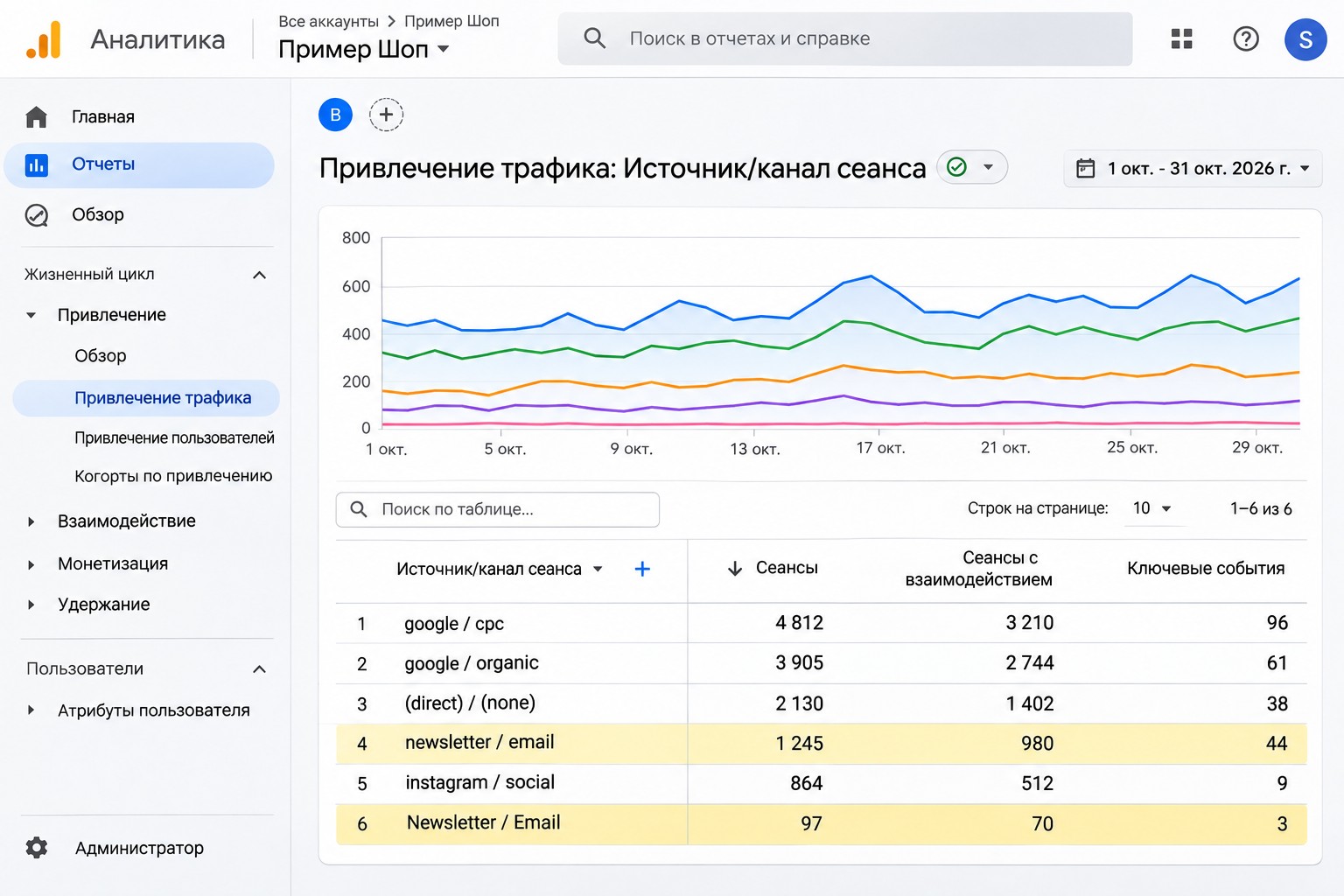
The screenshot (Russian interface) shows what inconsistent letter case does: the same newsletter is split into two rows, newsletter / email and Newsletter / Email. You can’t merge them retroactively in standard reports.
If you see conversions in your reports but aren’t sure which events are being counted, read my articles on GA4 events and GA4 key events.
Common mistakes
- Tags on internal links. For example, on a banner on your homepage. A click starts a new session with a new source, and the real source (ads, search) is lost. Never tag internal links.
- Inconsistent case and spelling.
Email,e-mailandmailin one property turn the report into a mess. - Non-Latin characters and spaces. Links break when pasted into messengers and look like gibberish.
- utm_source without utm_medium. The traffic doesn’t land in the right channel group and ends up unassigned.
- Tags in Google Ads instead of auto-tagging. Extra work, and the data still comes from auto-tagging anyway.
- Redirects that drop tags. Some sites redirect to another page and strip the parameters. Test it: open the link and check whether the tags are still in the address bar.
- Tagged links get indexed. If tagged links are publicly available, search engines may see duplicate pages. A canonical tag, which most SEO plugins add automatically, usually solves this.
FAQ
Do UTM tags affect SEO?
Not by themselves. The only risk is duplicate pages if tagged links get indexed at scale, and a correct canonical tag handles that. Tagged internal links hurt your analytics, not your SEO.
Can I use non-Latin characters in tags?
Technically yes, GA4 decodes them. But the links become long and awkward to copy, and some services truncate them. I always use Latin characters.
Why did traffic from a tagged link end up as “Unassigned”?
Most likely, the utm_medium value doesn’t match any rule in the default channel group. Use standard values: email, social, paid_social, cpc, referral, affiliate.
Should I tag the link in my Instagram bio or YouTube description?
Yes, if you want to separate that traffic from other visits from the same network. For example, utm_source=instagram&utm_medium=social&utm_campaign=profile_link.
Conclusion
A good UTM tag is short, written in lowercase Latin characters and always includes utm_source, utm_medium and utm_campaign. Agree on a naming template, keep a tag log, never tag internal links and don’t duplicate Google Ads auto-tagging. Then your GA4 reports will show the real picture instead of a hundred near-identical rows.
If you want your analytics set up correctly from the start, I can set it up for you. And if your ads are already running and you’re not sure about the numbers, order a free Google Ads express audit: I’ll review your account and tell you what to fix first. For more breakdowns of Google Ads and analytics, check out my YouTube channel.