
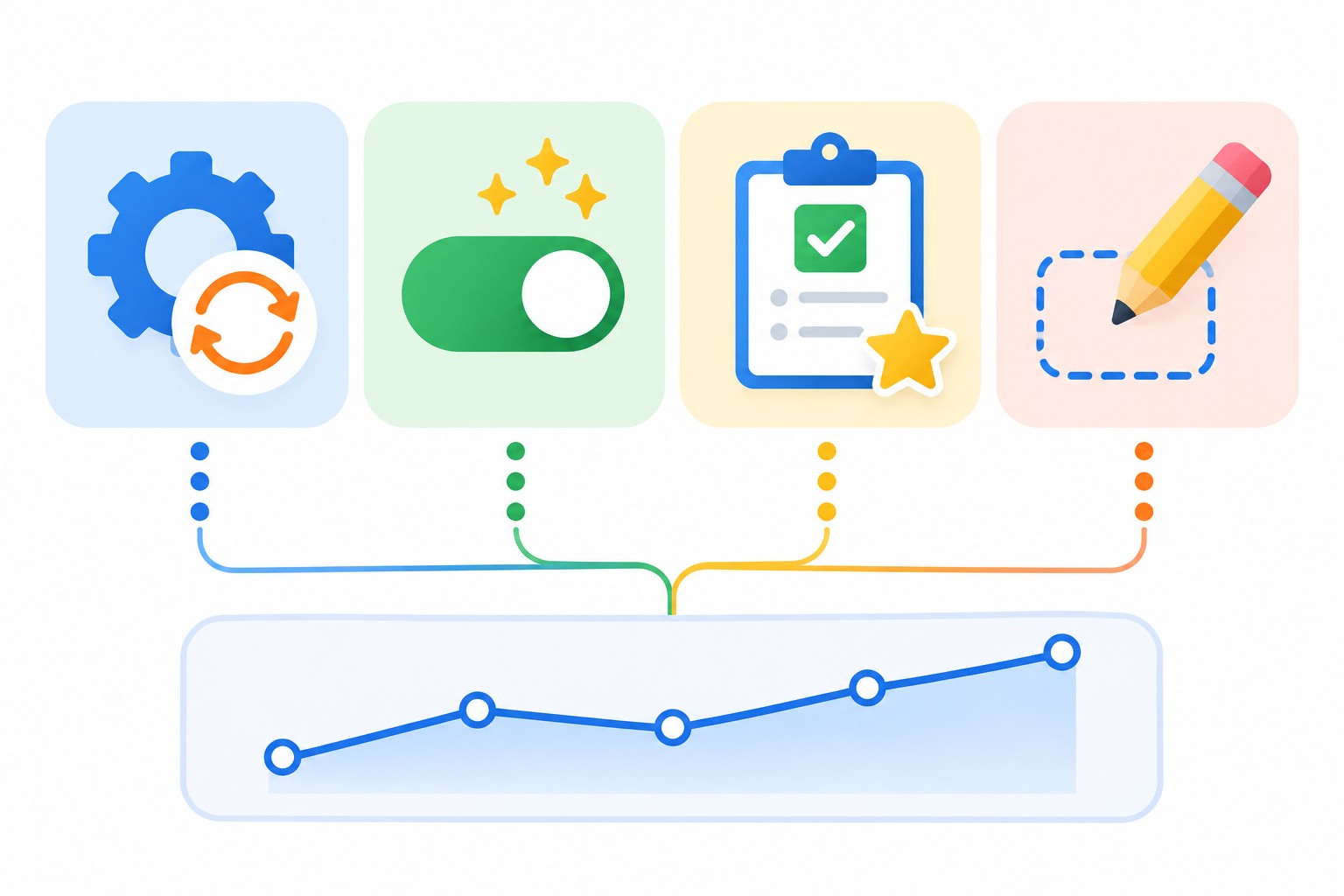
In GA4 all your data is events, and there are four kinds. Automatically collected events and enhanced measurement events are captured on their own, recommended events follow a template set by Google, and custom events are the ones you define yourself. The rule for choosing is simple: first check whether a ready-made event exists, and only then create your own.
I have been setting up analytics and Google Ads for more than 9 years, and I keep seeing the same picture: dozens of events with different names, and no way to tell how many leads came in. Below I explain how the kinds of events differ, which ones a typical site needs, and how to create your own event without mistakes.
What an event is in GA4
An event is any action on the site: a page view, a click, a form submission, a purchase. Every event has a name and parameters. The name says what happened, and the parameters add detail.
For example, page_view carries a parameter with the page address, and purchase carries parameters with the value and currency. The name counts the actions, and the parameters tell you where and how they happened. One event can carry up to 25 parameters.
The four kinds of events
1. Automatically collected events
These are gathered as soon as GA4 is installed, with nothing to configure. For a website the main ones are:
- first_visit: a user’s first visit to the site.
- session_start: the start of a session.
- user_engagement: the page has been active on screen for at least a second.
You cannot turn these off or rework them, and that is a good thing: they are the base of all the standard reports.
2. Enhanced measurement events
These are automatic too, but they have their own switch. They run without code when enhanced measurement is on:
- page_view: page views.
- scroll: scrolling to about 90% of the page.
- click: clicks on links to other sites.
- view_search_results: site search.
- video_start, video_progress, video_complete: views of embedded YouTube videos.
- file_download: file downloads.
- form_start, form_submit: form interactions.
Here is how to check the setting:
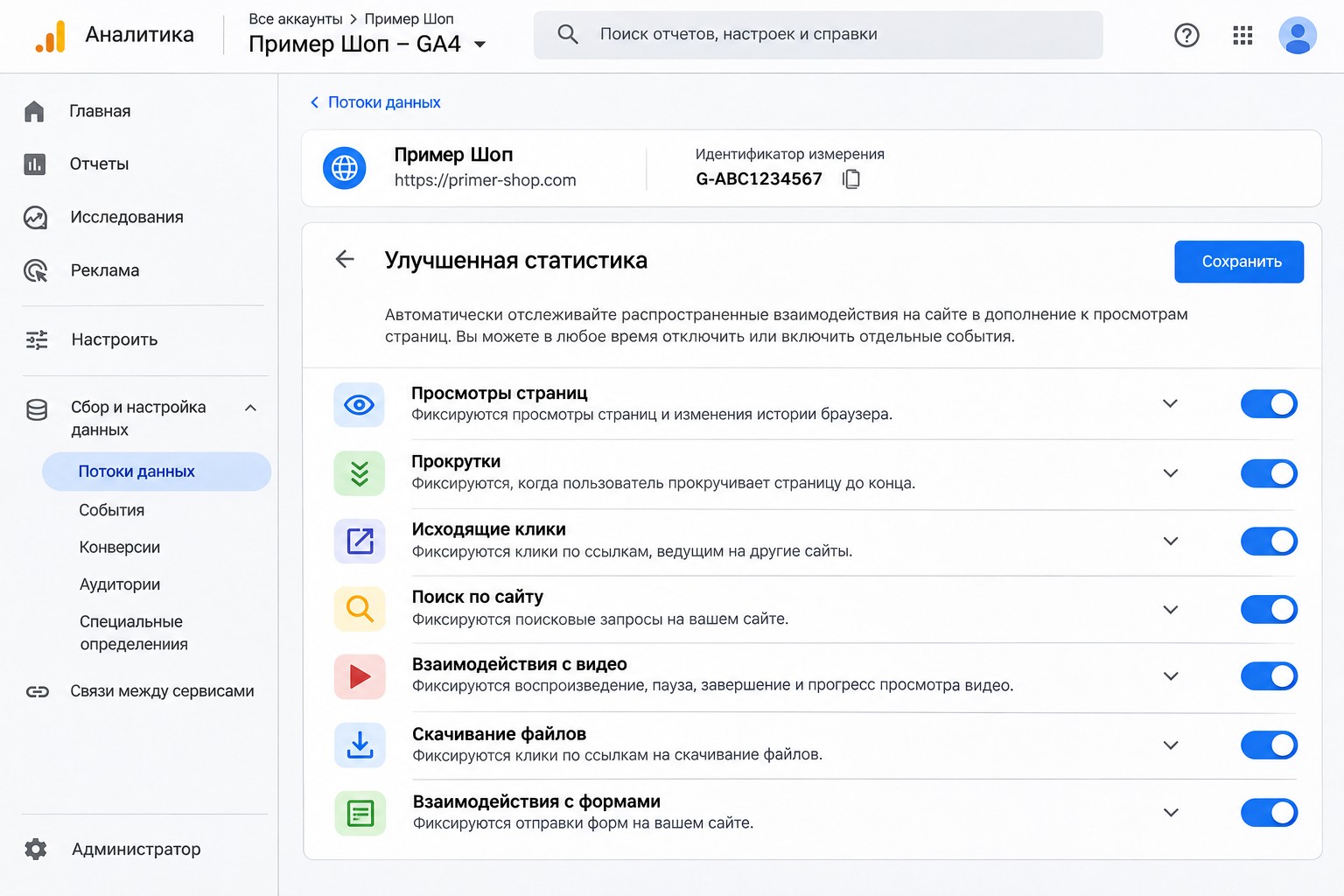
- Open Admin.
- Under Data collection and modification, choose Data streams.
- Open the stream you need.
- Make sure the switch under Enhanced measurement is on.
- Click the settings icon and turn off anything you do not need.
An important caveat: form_submit often counts the wrong thing. It can fire on a failed submission, and on some sites it does not fire at all. I do not rely on it for lead tracking. A dedicated event is better.
3. Recommended events
You add these yourself, but Google has already defined the names and parameters. Their main value is that they feed standard reports and work with new features. Examples:
- For all sites: login, sign_up, search, share, generate_lead.
- For online stores: view_item, add_to_cart, begin_checkout, purchase, refund.
- For lead generation: generate_lead, qualify_lead, close_convert_lead.
If your action fits a recommended event, use that exact name. A lead should be generate_lead, not form_sent. To GA4 these are different things, and with the second one you lose some functionality.
4. Custom events
You need these when no ready-made option fits, such as a click on a messenger button or opening a calculator.
They have one downside: their data does not appear in most standard reports. You will view them in the Events report or build separate explorations.
How to choose the right kind
I go through this chain:
- Does GA4 already collect it? Then there is nothing to do.
- Is it enough to turn on a switch in enhanced measurement? I turn it on.
- Is there a suitable recommended event? I set it up with the exact name and parameters.
- Nothing fits? Only then do I create a custom event.
This chain is enough almost every time, and it stops the property from turning into a pile of near-identical events.
How to create a custom event
There are two ways.
In the GA4 interface, without code
This works when the event can be derived from an existing one. The classic case: counting a visit to the “Thank you” page as a lead.
- Open Admin, then under Data display choose Events.
- Click Create event.
- Enter a name, such as thank_you.
- Choose to create it without code.
- In the event name field, select page_view.
- Enter the address of the confirmation page.
- Click Create.
Test this event. Make sure the “Thank you” page cannot be opened by accident and that people do not land on it twice. Otherwise you will count more leads than you really had.
Through Google Tag Manager
This is my main method. It is more flexible and works for clicks, forms and anything else that is not ready-made. In short: create a GA4 event tag, set the name and parameters, attach a trigger, and test it.
Naming rules and limits
These rules are easy to break once and then live with bad data for years.
- Event names can be up to 40 characters.
- A name must start with a letter.
- Only letters, numbers and underscores are allowed, no spaces.
- Case matters: my_event and My_Event are two different events.
- You cannot use reserved names or start parameter names with ga_, google_ or firebase_.
- Websites have no limit on the number of event names, but that is no reason to create dozens.
I write names in Latin letters, lowercase, with underscores: click_telegram, form_contact. It makes life easier both in GA4 and when passing data to Google Ads.
How to get parameters into reports
A common trap: you send a parameter, but it does not appear in reports. To see a parameter’s values there, register it as a custom dimension:
- Open Admin, then Custom definitions.
- Create a custom dimension with Event scope.
- Enter the exact name of the event parameter.
A standard property has 50 event-scoped custom dimensions, so only add the ones you need. Data usually appears in reports within 24-48 hours, and only going forward: the dimension will not fill in past data.
How to check that an event works
- Open the Realtime report and perform the action on your site. The event should appear in the event count card.
- For a detailed check, use the DebugView report, which shows the events and parameters of one user. It needs debug mode, and the easiest way to turn that on is Preview in Tag Manager.
- A day later, open the Events report and compare the count with the real number of actions.
What set of events you need in practice
To make this concrete, here are the base sets I usually start with. Treat them as a guide, not a rule: the exact list depends on your niche and how your leads come in.
Service website:
- generate_lead: a form lead, ideally with a parameter holding the form name.
- click_phone: a tap on a phone number on mobile.
- click_telegram or click_whatsapp: a click on a messenger button.
- file_download from enhanced measurement, if you publish a price list or brochure.
Online store:
- view_item: a product view.
- add_to_cart: an item added to the cart.
- begin_checkout: the start of checkout.
- purchase: a purchase with value, currency and transaction ID parameters.
For stores it matters even more to use the recommended names, because the ecommerce reports depend on them. Always send a transaction ID with purchase, or one order may be counted twice if the customer refreshes the page.
Common mistakes
- A new event instead of a recommended one: lead_form instead of generate_lead.
- One event under different names: Click_Phone, click_phone and phone_click show up as three separate rows.
- Duplicates: a form is counted by both enhanced measurement and a separate tag, so the report shows the same thing twice.
- Personal data in parameters. Sending names, phone numbers or emails to GA4 is not allowed and breaks Google’s policies.
- An important action not marked as a key event. Without that mark, GA4 will not treat it as a goal, and you cannot use it in advertising.
To work out what such an action should cost, see my guide on Google Ads cost per lead. If you do not have time to set this up yourself, I offer analytics setup as a done-for-you service.
FAQ
What is the difference between an event and a key event?
An event is any action. A key event is a regular event you have marked as important for the business, such as a lead or purchase. You set the mark in the settings, and there is nothing separate to create.
Why doesn’t my new event show up in reports?
Data usually appears in standard reports within a day or later. Check it in the Realtime report first. If it is there, just wait.
Can I rename an event in GA4?
Not directly, but you can change it with the Modify event feature. Data changes only from the moment of setup, so it is better to name events correctly from the start.
How many events does a typical service website need?
Automatic events, enhanced measurement and 2-5 of your own are enough: a lead, a call, a messenger click. The exact set depends on your niche and how customers reach you.
Conclusion
Do not create an event until you have checked that it is not already collected or covered by a recommended one. Name events by one set of rules, mark important actions as key events, and check the result in the Realtime report. This gives you clean data for both reporting and advertising.
If you are not sure your analytics and conversions are set up correctly, request a free express audit: I will check the account and tell you what to fix first. More breakdowns are on my YouTube channel.