
A key event in GA4 is a regular event you have flagged as important to the business: a lead, a call, a purchase. Setting one up takes a minute: go to Admin > Data display > Events and click the star next to the event. The hard part is not the click. It is picking the right events and getting them into Google Ads.
These used to be called “conversions”. In 2024 Google split the terms: GA4 now has key events, and the word “conversion” belongs to Google Ads. I’m Sergey Onishchenko, and I have been setting up Google Ads and analytics for over 9 years. In audits I keep seeing the same picture: a dozen starred events in GA4, while real leads are not tracked at all. Here is how to do it properly.
Key events vs conversions: what is the difference
This is more than a new name. There are now two separate levels.
- A key event lives in GA4. It marks an important action, and you see it in Analytics reports.
- A Google Ads conversion is a key event you have passed to your ad account. Campaigns can learn from it and use it for bidding.
That leads to an important point. A star on its own changes nothing in your ads. Until you create a conversion in Google Ads, the ad system does not know the event exists. It works the other way too: Google Ads conversions do not show up in standard GA4 reports. You see them in Google Ads or in the Advertising section of Analytics.
If you are still working out where events come from, start with my guide to automatic, recommended and custom events in GA4. Here I assume the events you need are already coming in.

Which events should be key events
The test is simple: if this action happened more often, would the business earn more? If yes, it is a candidate. If not, leave it as a regular event.
What I usually mark:
- Online stores:
purchase. Google makes it a key event by default. Sometimes I add quick-buy orders as a separate event. - Services and lead generation: form submissions (the recommended name is
generate_lead), phone clicks, messenger clicks. - B2B and high-ticket services: the lead plus steps closer to the sale, such as a booked consultation.
What not to mark: page_view, session_start, scroll, clicks on any button, or views of the contact page. These happen all the time and say nothing about revenue.
A quick example. On a service website someone opens a page, scrolls, checks the prices and taps the phone number. GA4 sees four events, but only the last one matters to the business, because a conversation with a customer may follow. So the phone click gets the star, and the rest stays in reports as background. If you are unsure, ask yourself: would I pay for this action from my ad budget? If not, it does not need a star.
The limit is 30 key events on a standard property and 50 on Analytics 360. In practice, 2-5 is plenty. The more you have, the harder it is to see what is working.
How to mark an event that already reaches GA4
This is the most common case. The event is already in your reports, and you only need to flag it.
- Open GA4 and click Admin at the bottom left.
- Under Data display, select Events.
- On the Recent events tab, find the event. Use search if the list is long.
- Click the star icon in the event’s row.
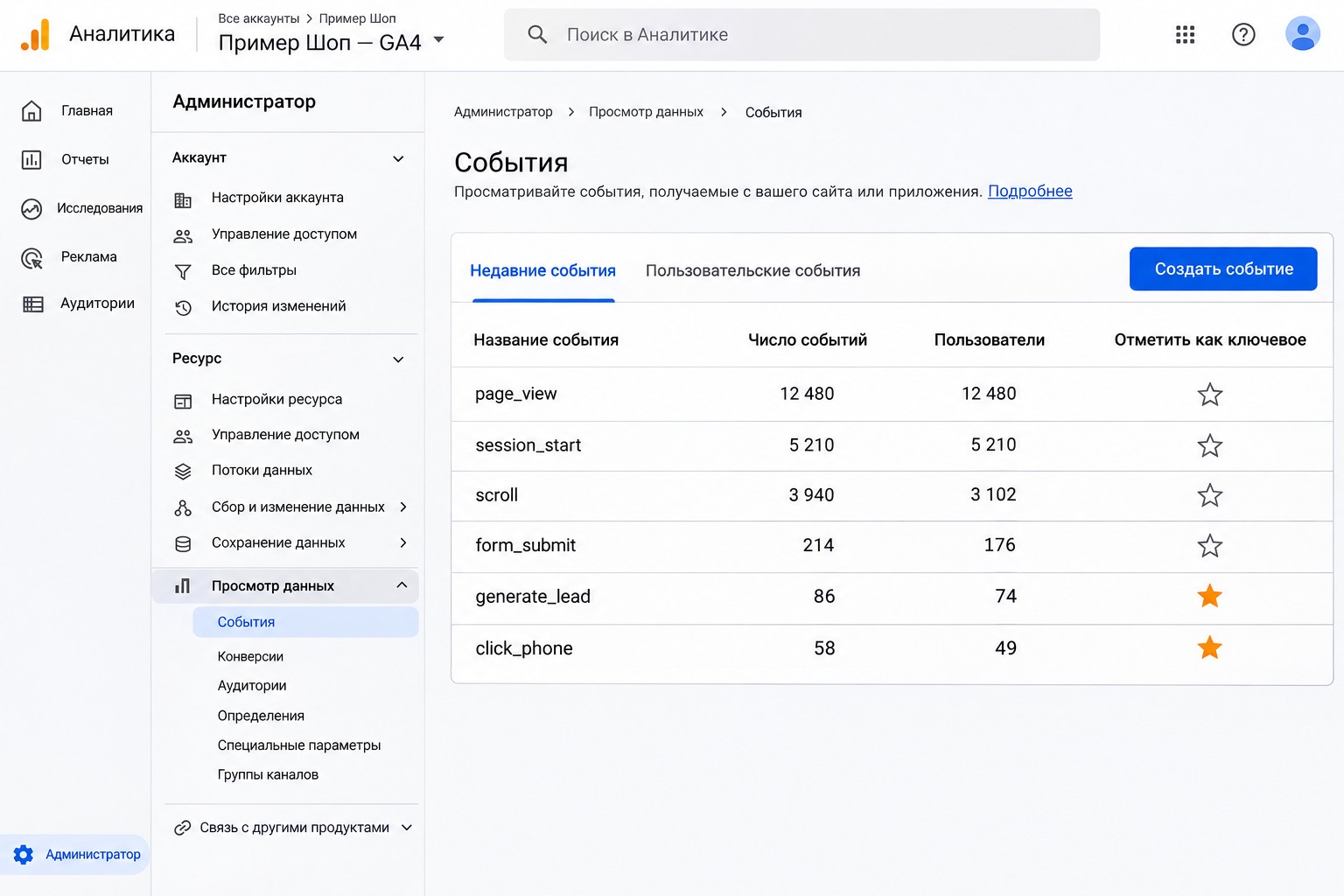
Done. You need the Editor role or higher at property level. The new key event appears in standard reports within 24 hours and in the Realtime report within a few minutes.
Remember one thing: marking only works going forward. Yesterday’s events will not become key events retroactively, and past reports will not change.
How to create a key event in advance or without code
Sometimes the event does not exist yet: the site is still being set up, or you want to count visits to a thank-you page. There are two options.
Option 1. Mark it in advance
If the event will be set up later, for example through Google Tag Manager, you can mark it ahead of time.
- Go to Admin > Data display > Events.
- Click Create event and enter the name exactly as it will come from the site, for example
generate_lead. - Turn on Mark as key event.
- If needed, set the default key event value and the counting method.
- Click Create.
The name has to match character for character. Generate_Lead and generate_lead are different events in GA4.
You need at least the Marketer role for this. If you do not see the Create event button, your permissions are too low.
Option 2. Build it from another event without code
This works when the visitor lands on a separate page after submitting, such as /thank-you/.
- In the same section, click Create event and enter a name, for example
thank_you. - Turn on Mark as key event.
- Choose to create it without code.
- In the Event name field, select the source event
page_view. - In the URL field, enter the thank-you page address.
- Click Create.
First, make sure nobody can reach the thank-you page by accident, from a menu, Google search or a bookmark. Otherwise your numbers will be inflated. If you have no such page, use an event from Tag Manager. I cover the basics in my article on tags, triggers and variables.
How to send a key event to Google Ads
Without this step, your ads will never see your leads. First check the requirements:
- GA4 and Google Ads are linked.
- Auto-tagging is on in Google Ads.
- Your site does not drop the GCLID parameter during redirects.
- You have admin access in Google Ads and at least the Marketer role in GA4.
Then create the conversion in Google Ads:
- In the Goals menu, open Summary.
- Click Create conversion action.
- Select your Google Analytics property.
- Tick the event and click Select events.
- Click Save and continue.
You can also do this from GA4: Advertising > Conversion management (under Tools), then New conversion. There is a catch, though. Conversions created this way are marked as secondary, and they do not affect bidding until you change the action optimization setting in Google Ads. That is why I create them in Google Ads and check the status straight away.
Past data does not carry over, and new data should start showing up within about 24 hours.
How to check that everything works
I run through this short list right after every setup.
- Complete the action on the site yourself by sending a test lead.
- Open the Realtime report and find the event. Within a few minutes it should show as a key event.
- A day later, compare the event count in GA4 with the leads that actually reached your inbox or CRM.
- In Google Ads, open Goals > Summary and check the conversion status.
Common mistakes
I see these again and again in audits.
- Everything is starred. A dozen key events, half of them page views. Reports look great, but there are no leads.
- **
form_submitfrom enhanced measurement is a key event.** This automatic event can fire where no lead happened, for example on another form on the site. Compare it with real leads. - Double counting. One purchase is counted by both the Google Ads tag and the GA4 import, and both are primary. The campaign sees twice as many sales as you actually made.
- Extra events marked automatically. With ads personalization on and Google Ads linked, events such as
add_to_cartorsession_startcan get marked on their own. Check the Key events tab and remove what you do not need. - Waiting for historical data. Marking does not work retroactively.
- The conversion exists but it is secondary. The campaign is not learning from it, while the owner assumes it is.
- Personal data in parameters. You must not send a name, phone number or email in an event. It breaks Google’s policies.
FAQ
What happened to conversions in GA4?
Nothing was lost. They were renamed key events, and your settings and data stayed in place. “Conversion” now refers to Google Ads.
How do I remove a key event?
On the Key events tab, click the star to unmark it. New data stops being collected as a key event, and existing statistics stay in your reports.
Why is my key event not showing in reports?
Usually it is one of three things: less than a day has passed, the name does not match what the site sends, or the event is not firing at all. Check the Realtime report after a test action.
Can I give an event a value?
Yes. You can set a default key event value when you create it. For a store, it is better to send the real order total in the value and currency parameters. If your leads vary in worth, a default value is only a rough estimate.
Should I import from GA4 if I already have a Google Ads conversion tag?
The same action should not be primary twice. Pick one source for bidding and leave the other as secondary. Which one depends on your site and setup. I usually look at which matches real leads more closely.
Conclusion
A key event takes one click, but it only means something when you mark actions that bring in money and those actions reach Google Ads. Pick 2-5 events, mark them, create the conversions and compare the numbers with real leads.
If you would rather not deal with this yourself, I can set up your analytics for you. And if your ads are already running and you are not sure the numbers are right, order a free express audit: I will review the account and tell you what to fix first. You will find more Google Ads and analytics walkthroughs on my YouTube channel.