
If Google disapproved your ad, don’t rush to file an appeal and don’t recreate the ad. First find the exact reason in your account, fix the text, the asset or the landing page, and save. Google reviews the ad again automatically, and in most cases that’s all you need. An appeal only makes sense when you’re sure the decision is wrong or when a new review didn’t start.
I’ve been running Google Ads for over 9 years, and I keep seeing the same story: someone rewrites the ad five times while the real problem sits on the website. In this guide I’ll show you how to find the cause quickly, what to fix in each case, and when to appeal.
How Google Ads review works
Review starts on its own after you create or edit an ad or asset. Google checks headlines, descriptions, keywords, the destination, images and video. Most ads are reviewed within one business day, though complex cases can take longer. If the status hasn’t changed after 2 full business days, check the ad. If it’s been more than a week, contact Google Ads support.
One important detail: any edit restarts the review. If you tweak the text every half hour, you’re the one keeping the ad in the queue.
Ad statuses
- Under review: the review is still running and the ad isn’t showing yet.
- Eligible: the ad passed and can show.
- Eligible (limited): the ad can show, but with restrictions by country, device, viewer age, or because your category requires verification.
- Disapproved: the ad can’t show until you fix the violation.
If a campaign is quiet while the status says Eligible, the issue isn’t review anymore. My guide on why Google Ads shows no impressions will help there.
How to find the exact reason
Don’t guess. Google always names the policy behind a disapproval.
- Open Campaigns, then Ads.
- Hover over the Disapproved status in the table. You’ll see the policy name and a link to read it.
- To see reasons for all ads at once, add the Policy details column: Columns icon, Attributes, tick Policy details, Apply.
- If you received an email from Google, follow its link to the flagged ads.
- Open the policy page and read exactly what’s prohibited. It often includes examples.
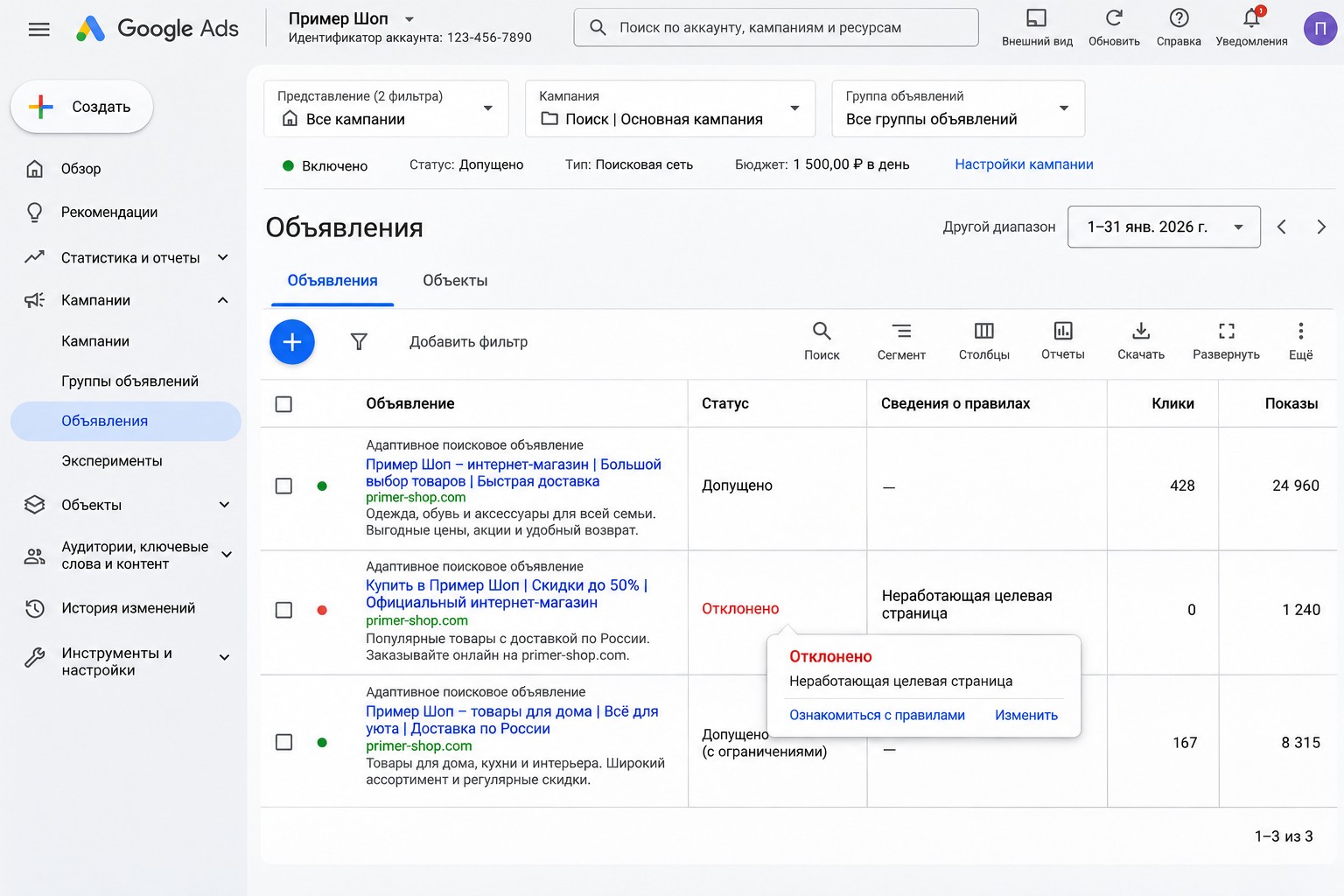
Write down the exact wording. It decides everything that follows: whether the problem is in the ad text, an asset, or the destination. Sometimes only one headline or image is disapproved, and that’s the only thing you need to change.
Common reasons and how to fix them
These are the reasons I see most often. Exact policy names in your account may differ slightly, since Google updates them.
Destination not working
This is the most common one. The site was down during review, the page returns a 4xx or 5xx error, the domain doesn’t resolve, a redirect is misconfigured or loops, the link is broken, the page requires a login, or the server is too slow or blocks Google’s crawler (AdsBot). A related violation is called Destination not accessible.
- Open the final URL in incognito mode on both a phone and a computer.
- Check the URL for typos, and the page for 404 or 5xx errors, “under construction” placeholders and unnecessary redirects.
- Ask your host or developer whether site protection (a firewall, a geo block, an anti-bot tool) blocks Google’s requests. This is a frequent cause when the site opens for you but not for the review.
- Also check that the display URL domain matches the final URL domain. Otherwise you’ll get a different violation: Destination mismatch.
- Once it’s fixed, file an appeal. If the problem was only on the site, you don’t need to change the ad text.
Editorial rules: punctuation and symbols
Google disapproves text with repeated punctuation (“Sale!!”), symbols replacing letters (“s@le”, “fl0wers”), spaced-out gimmicks (“S.A.L.E”), emoji, and symbols used for attention, such as asterisks around a word. It takes a minute to fix: remove the extras and save. Also watch for all caps, and make sure the headline reads like normal text.
Misleading or unverifiable claims
These are promises you can’t back up on the site. The ad says “best price in town” or “guaranteed results”, but the page doesn’t. The ad shows one price, the site shows another. There are no contact details, and it’s unclear who the seller is.
Fix this on both sides: remove what you can’t prove from the text, and clean up the site. The page needs real contact details, company information, payment, delivery and return terms, and a privacy policy. If these problems repeat, you may face more than a disapproval, so also read about what to do if your Google Ads account is suspended.
Trademarks
If your text mentions another brand, its owner may restrict that name. Resellers and authorized partners have separate rules, and brand text isn’t always prohibited. If you’re an official partner, ask the brand owner to authorize you to use the name in ads. If not, remove the brand from the ad text. This doesn’t apply to keywords: trademark rules generally restrict the text, not a brand used as a keyword.
Regulated categories
Healthcare, gambling, alcohol, financial services, crypto, pharmaceuticals. Here an ad can be Disapproved or Eligible (limited) because of the category, not the wording. Some categories need certification or verification from Google, and in some countries the ads are banned. Rewriting won’t help: open the policy, find your country, and check the requirements. If verification isn’t available, talk to a lawyer about what you can advertise.
Malicious code on the site
If the site has malware, hidden redirects, or a page that auto-downloads files, Google will disapprove the ads. Owners often don’t know: the site was hacked. Check it in Search Console, clean it with your developer, update the CMS and plugins, and only then resubmit.
How to fix a disapproved ad, step by step
- Identify where the problem is: the ad, an asset, or the site.
- If it’s in the text or an asset, open Campaigns, then Ads, hover over the ad, and select Edit. Make the change and select Save. The ad goes back to review automatically.
- If it’s on the site, fix the page. If you can’t or don’t want to, point the ad to a different page that complies.
- Wait for the decision. One business day is usually enough.
- If the text is fine and you only need a new review after fixing the site, file an appeal or make a small edit to the ad.
Don’t create a duplicate with the same text: the cause won’t go away, and your stats will be split across two ads. Only delete the ad if the problem can’t be fixed. Google itself suggests this, so you don’t put the account at risk.
When and how to appeal
An appeal fits two situations: you think the decision is wrong, or you’ve made changes and want Google to look again. In my experience, an appeal without real changes almost never helps if the violation is real.
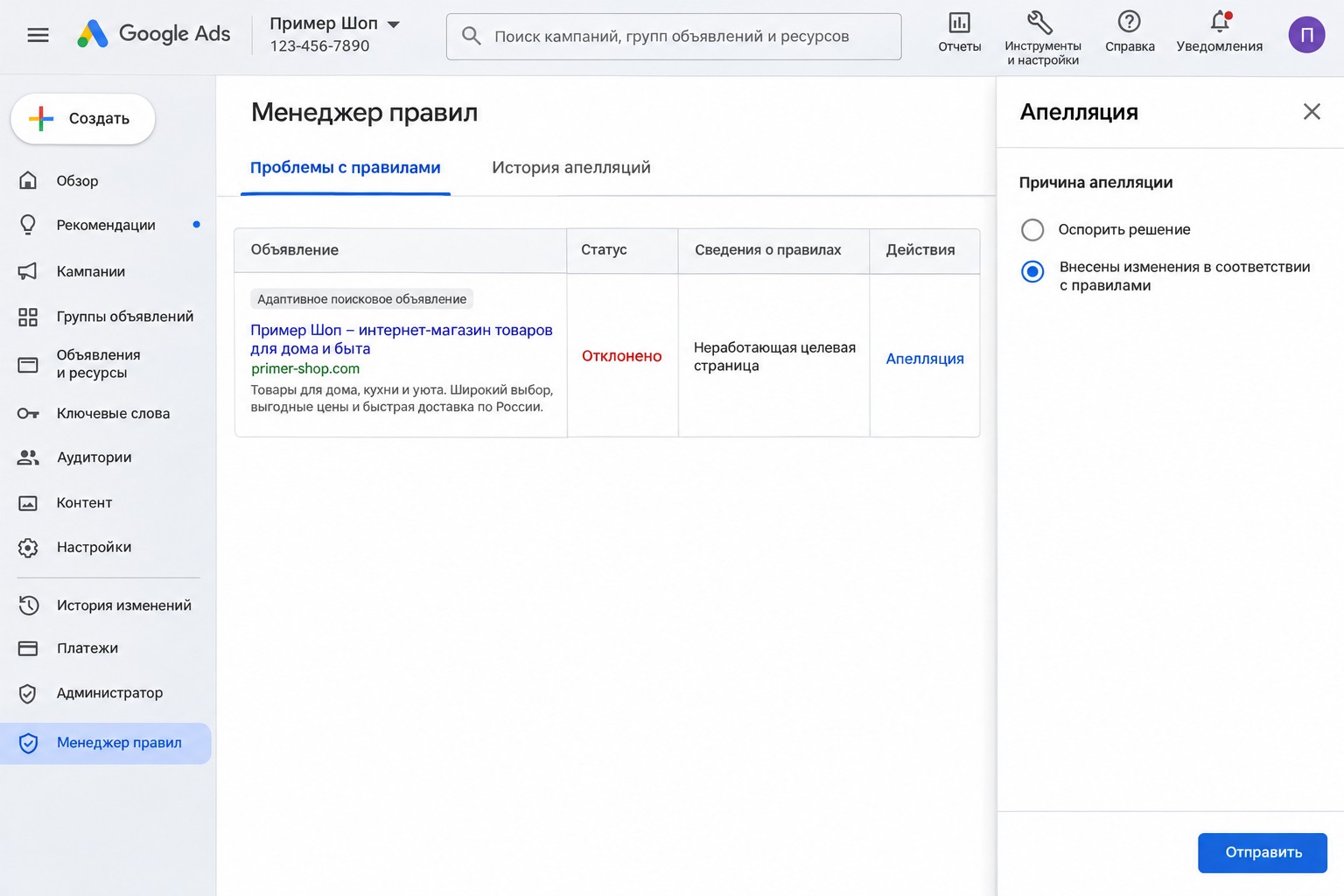
- Go to Tools, then Troubleshooting, then Policy manager.
- On the Policy issues tab, find the ad and select Appeal.
- Under Reason for appealing, choose Dispute decision or Made changes to comply with policy.
- Select Submit.
- Track the result on the Appeal history tab. If the status says In progress, check back in about 24 hours.
What to know about appeals
- Each ad gets 3 appeals. After 3 unsuccessful ones, you have to contact support.
- Wait at least 24 hours between appeals for the same ads, or you’ll get a duplicate.
- Appeal in small batches by ad group or campaign. Sending everything at once can slow the review.
- If you send too many unique appeals within 24 hours, Google may suspend processing for the rest of that window.
- Since July 21, 2026, decisions older than 6 months can’t be appealed in the account, only through support.
- If you fixed everything and the appeal failed or was marked as a duplicate, don’t keep resubmitting. Make a small edit to the ad text or final URL to trigger a new crawl.
Common mistakes
- Rewriting the text without reading the reason. If the site is down, no new headline will help.
- Creating new ads instead of fixing old ones. It can look like trying to get around review, especially when repeated.
- Testing the page only on your own computer. It works for you, but protection blocks Google’s crawler or visitors from another country.
- Ignoring emails from Google. Repeat violations can lead to account-level restrictions.
- Appealing every ad at once without changing anything.
- Editing an ad while it’s under review. Every edit sends it back to the queue.
How to avoid extra trips through review
I keep a simple pre-launch checklist:
- the site opens on a phone and from the target country, and the domain matches the display URL;
- the site has contact details, company information, delivery and return terms, and a privacy policy;
- every price, discount and guarantee in the ad is confirmed on the page;
- the text has no all caps, repeated punctuation, emoji, or symbols replacing letters;
- the category is checked against Google’s policies for the target country.
You’ll find the full list of pre-launch checks in my Google Ads checklist.
FAQ
How long does Google Ads review take?
Usually within one business day, and complex cases take longer. After 2 full business days, check the status. After more than a week, contact support.
Why was my ad disapproved if I didn’t change the text?
Google can review ads more than once. Policies get updated, and your site may have changed or been unavailable. Open the status tooltip and see exactly what it says.
Should I fix the ad or appeal?
If the violation is real, fix it and save, and Google reviews the ad automatically. Appeal when there’s no violation or when your changes were only on the site.
Can I just create a new ad instead?
If the text and page are the same, the new ad will get the same decision. Repeated attempts can also look like circumventing the system, which puts the account at risk.
Does a disapproved ad affect my whole account?
One disapproval doesn’t directly affect the account. But repeated violations of the same policies can lead to restrictions, so it’s better to fix the cause right away.
Bottom line
Google Ads disapprovals nearly always follow one path: read the exact reason, fix the ad or the page, let Google review it again, and appeal only if needed. Most of the time the problem isn’t the words but the site, so start there.
If your ads keep getting disapproved or you can’t work out why, request a free express audit: I’ll look at your account and site and tell you what to fix first. I also post practical breakdowns of Google Ads, analytics and Tag Manager on my YouTube channel, so subscribe if that’s useful.