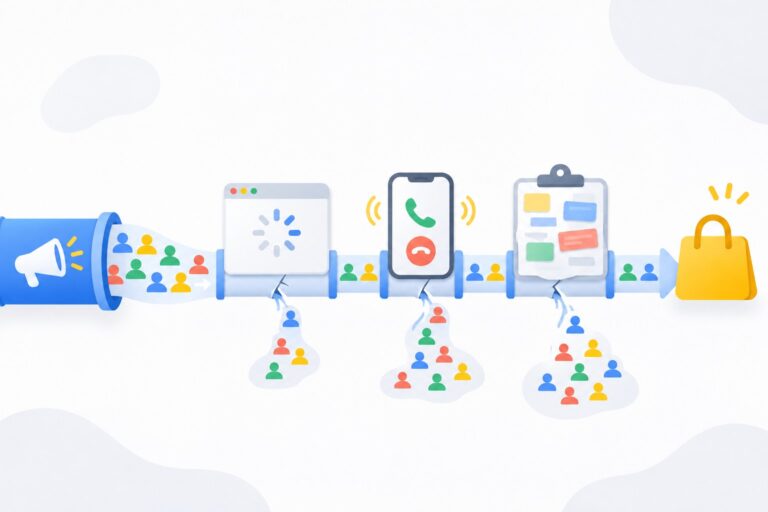
If your Google Ads have no impressions, the cause is almost always in one of five places: the account (billing, verification, suspension), campaign and ad status, keywords, targeting, or bids and budget. Check them from the top down, from the account to the individual keyword, and in most cases you will find the problem in 10-15 minutes.
I have been setting up and managing Google Ads for more than 9 years, and “why aren’t my ads showing” is the question I hear more than any other. Below is the exact order I follow when I open an account with zero impressions or a sudden drop. Menu names reflect the 2026 interface, but Google renames things from time to time, so focus on the logic.
First, make sure there really are no impressions
A common scenario: someone searches for their own ad on Google, doesn’t see it, and decides the campaign is broken. That is a poor way to check.
- Google doesn’t show your ad to every user for every search. With a limited budget, your ad reaches only part of the audience.
- If you keep searching for your ad without clicking it, the system may start showing it to you less often.
- Your location, browser language, and search history may not match the campaign settings.
- Account statistics are delayed, so fresh impressions don’t appear right away.
The right way is to look at the Impressions column for the last 7 days and use the Ad Preview and Diagnosis tool. You’ll find it under Tools, then Troubleshooting. Enter a search term, choose a location, language, and device, and Google will tell you whether your ad would appear and, if not, why. It doesn’t count as an impression and doesn’t affect your stats.
Reason 1: account-level problems
If nothing is running at all, start with the account. Look at the top of the interface, where Google displays red and yellow notifications.
Payment failed
The most mundane and most common cause. The card was declined, prepaid funds ran out, or the bank blocked an international payment. Check the Billing section for a payment issue message. Until the payment goes through, your ads won’t run.
Advertiser verification or suspension
Google may ask you to verify your identity or organization. If you miss the deadline, your ads stop. If the account is suspended, you’ll see a suspension notice. New ads or new campaigns won’t help here: you need to find the cause and submit an appeal. If you’re not sure what’s wrong with the account, a Google Ads audit will clarify it.
Reason 2: campaign, ad group, and ad status
Open your campaign list and check the Status column. Hover over the status and Google will show a tooltip explaining the reason.
- Eligible: the campaign can serve, so the problem is deeper.
- Eligible (limited): the campaign is running but serving less often, usually because of budget or bid strategy settings.
- Not eligible: there are no active ad groups, ads, or keywords, or they are all paused.
- Pending: the campaign start date hasn’t arrived yet.
- Ended: the end date has passed.
- Paused and Removed: the campaign was switched off manually.
Then check the ads. A new ad goes through review, which usually takes anywhere from a few hours to one business day, sometimes longer. Disapproved means a policy violation, and the tooltip names the specific policy. Approved (limited) means the ad serves only in some places, for example not in every country or not to every user.
A frequent beginner mistake: the campaign exists, but the ad group has no enabled ads. Or there are ads, but the ad group is paused. Check the whole chain: campaign, ad group, ads, keywords. Every link must be enabled.
Reason 3: keywords
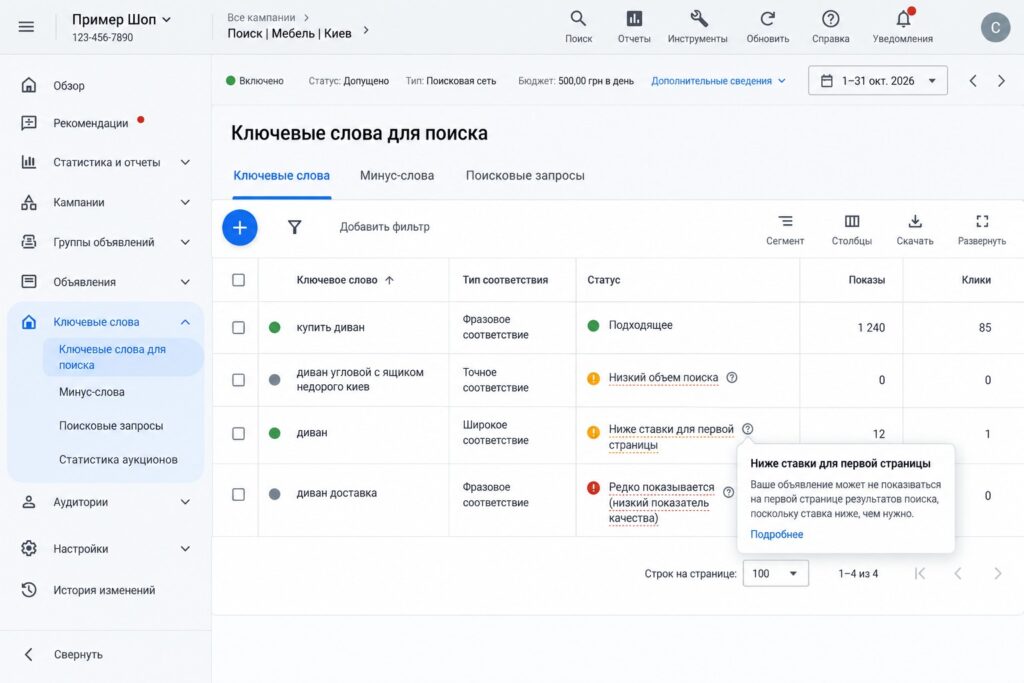
If the campaign and ads look fine, move to keywords. In the current interface, go to Campaigns, then Audiences, keywords, and content, then Search keywords. Check the Status column again.
Low search volume
The Low search volume status means almost nobody searches for that phrase. This happens when people add long, overly specific phrases like “buy red corner sofa with storage drawer cheap downtown”. On their own, such keywords barely get impressions. The fix is to add broader variations, research keywords in Keyword Planner, and review your match types.
Below first page bid estimate
This status means your ad lacks the Ad Rank to make it into the ad block. It’s about both bid and quality, which I cover below.
Rarely shown due to low Quality Score
This status appears when Google considers the ad and landing page a poor match for the search. Usually it helps to add the keyword to a headline, create a dedicated landing page for the service, and remove keywords from the ad group that don’t belong there.
Negative keywords block the searches you need
This one is easy to forget. You added “free” as a broad match negative and cut off useful searches along with the junk. Or a negative keyword accidentally matches your main keyword. Review negative keyword lists at the account, campaign, and ad group level.
Reason 4: targeting is too narrow
Even a perfect campaign gets no impressions if you’ve blocked its path yourself.
- Locations. Check which regions are selected and which presence option is set. For local businesses I use “Presence: people in or regularly in your included locations”. If you chose a small town and also limited the radius, there may simply not be enough audience.
- Languages. If only one language is selected and your customers use Google in another, you lose part of your impressions. Google uses several signals to detect language, but an overly narrow selection still limits reach.
- Ad schedule. Sometimes ads run only during business hours, and you check them in the evening.
- Audience exclusions and bid adjustments. Excluding large segments or applying strong negative device adjustments reduces reach.
- Campaign dates. Make sure the end date isn’t in the past.
Reason 5: bids and budget
Google decides whether to show your ad in an auction. Ad Rank depends on your bid, the quality of your ad and landing page, Ad Rank thresholds, competition, the context of the search, and the expected impact of your assets (sitelinks, callouts, and so on). If your Ad Rank is below the threshold, the ad doesn’t show at all.
Bid is too low
This applies to Manual CPC and to Maximize clicks with a maximum CPC bid limit. If you set a limit of $0.30 while clicks in your niche cost $3, you’ll get almost no impressions. Check the first page and top of page bid estimate columns, and use Keyword Planner to see the typical price range for your keywords.
Target CPA or ROAS is too strict
With Target CPA and Target ROAS, Google tries to hit your target. If the target is unrealistic, the system simply stops entering auctions. A classic case: the real cost per lead is $40, but the target is set to $10. Impressions drop to almost zero. These numbers are illustrative; every niche is different.
Budget is too small
A very small daily budget combined with expensive clicks means your ad shows only occasionally, and the campaign may be marked Eligible (limited). Calculate how many clicks per day your budget can actually buy. If it’s fewer than 5-10, it’s better to narrow the campaign to your most important searches than to spread the money thin. You’ll find budget guidelines in my article how much Google Ads costs.
Bid strategy is learning
After a bid strategy change or major edits, the campaign may show a Learning status. Impressions and costs fluctuate during this period. That’s normal for a few days, but don’t change settings every day, or the learning period starts over.
Step-by-step checklist: what to check when there are no impressions
This is the order I use myself. Go strictly from top to bottom.
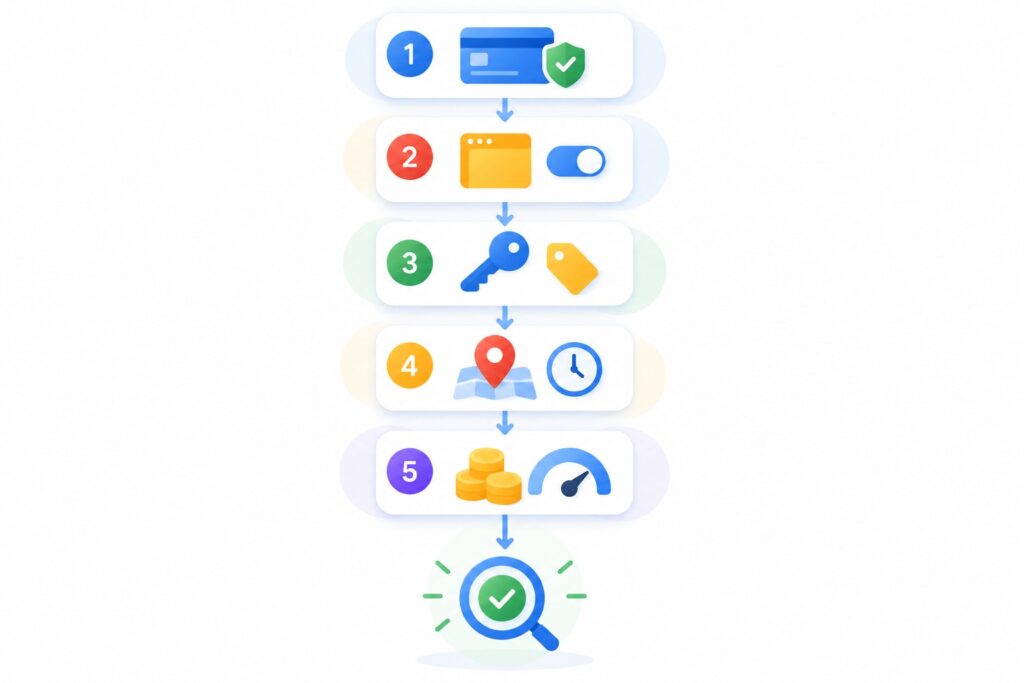
- Notifications at the top of the account: billing, advertiser verification, suspension.
- Campaign status: enabled, dates correct, not Not eligible.
- Ad groups: enabled, each with at least one active ad.
- Ads: approved, no Disapproved status.
- Keywords: enabled, no widespread Low search volume or Rarely shown statuses.
- Negative keywords: not blocking your main searches.
- Targeting: location, language, schedule, audience exclusions.
- Bids and strategy: max CPC limit or target CPA not set too low.
- Budget: enough for at least several clicks a day.
- Ad Preview and Diagnosis tool: a final check for a specific search term.
If you’re only planning a campaign, set it up correctly from the start with my guide on how to set up a Google Ads search campaign from scratch.
Common mistakes
- Checking impressions by typing your search into Google every half hour. It says nothing about how the campaign actually performs.
- Expecting results in the first hours after launch. Ads need to pass review, and bid strategies need time.
- Creating a new campaign instead of finding the cause in the old one. A billing issue or suspension will carry over to the new one.
- Setting a target cost per lead based on wishful thinking rather than real data.
- Adding only very long, narrow keyword phrases.
- Selecting a tiny location and schedule, then being surprised by low reach.
Frequently asked questions
How long should I wait for impressions after launching a new campaign?
Usually the first impressions appear within a few hours after the ads are approved. Review typically takes up to one business day. If more than two days have passed and impressions are still zero, go through the checklist above.
Why did impressions suddenly disappear?
Most often it’s billing, ads disapproved after a re-review, a bid strategy change, or edits that narrowed targeting. Check the Change history in your account to see who changed what in recent days.
Why is the status Eligible but there are still no impressions?
It means everything is technically enabled, but the ad is losing the auction or there are too few searches. Check keyword statuses, bids, and the Ad Preview and Diagnosis tool.
Should I contact Google Ads support?
Yes, if you’ve gone through every item and still can’t find the cause, especially if the account shows notifications you don’t know how to fix. Include your account ID, the campaign name, and what you’ve already checked.
Conclusion
Zero impressions is almost never a mystery. Work through the chain: account and billing, campaign and ad statuses, keywords and negatives, targeting, bids and budget. At every level Google tells you the reason when you hover over the status. The key is not to create new campaigns at random or change everything at once.
You can check your account yourself with my checklist: 25 Google Ads mistakes that eat your budget.
If you can’t find the cause, or your campaign is showing but not bringing leads, request a free express audit: I’ll look at your account and tell you what to fix first. For more practical walkthroughs, subscribe to my YouTube channel.