
There is no universal way to track a form, because it all depends on what your site does after submission. If a thank-you page opens, count views of that page. If not, try the built-in Form Submission trigger, then a visibility trigger on the success message. For complex forms, the most reliable option is a dataLayer event from your developer. Then Google Tag Manager sends a generate_lead event to GA4.
I’m Sergey Onishchenko, and I have been setting up Google Ads and analytics for over 9 years. Forms are still the most common place where leads get lost or extra ones get counted. Below I’ll show how to identify your form type, set up each of the four methods and check the result. If the terms are still fuzzy, read my article on tags, triggers and variables first.
First, see how your form behaves
This takes a couple of minutes and saves hours. Open the site and send a test lead. Then see what happens:
- A new page opens at a different address, such as /thank-you/. This is the easiest case.
- The page reloads at the same address or with a parameter. This is a regular HTML form, and the built-in trigger usually works.
- The page does not reload, and a message like “Thanks, we’ll be in touch” appears. This is an AJAX form, and the built-in trigger often stays silent.
- The form sits inside a third-party block (a widget, Google Forms, a booking service). Most likely it is an iframe from another domain, and your site’s GTM container cannot see what happens inside it.
Also try sending the form with a required field left empty. You need to know what happens on an error, because a good method must not count that attempt as a lead.
Which method to choose
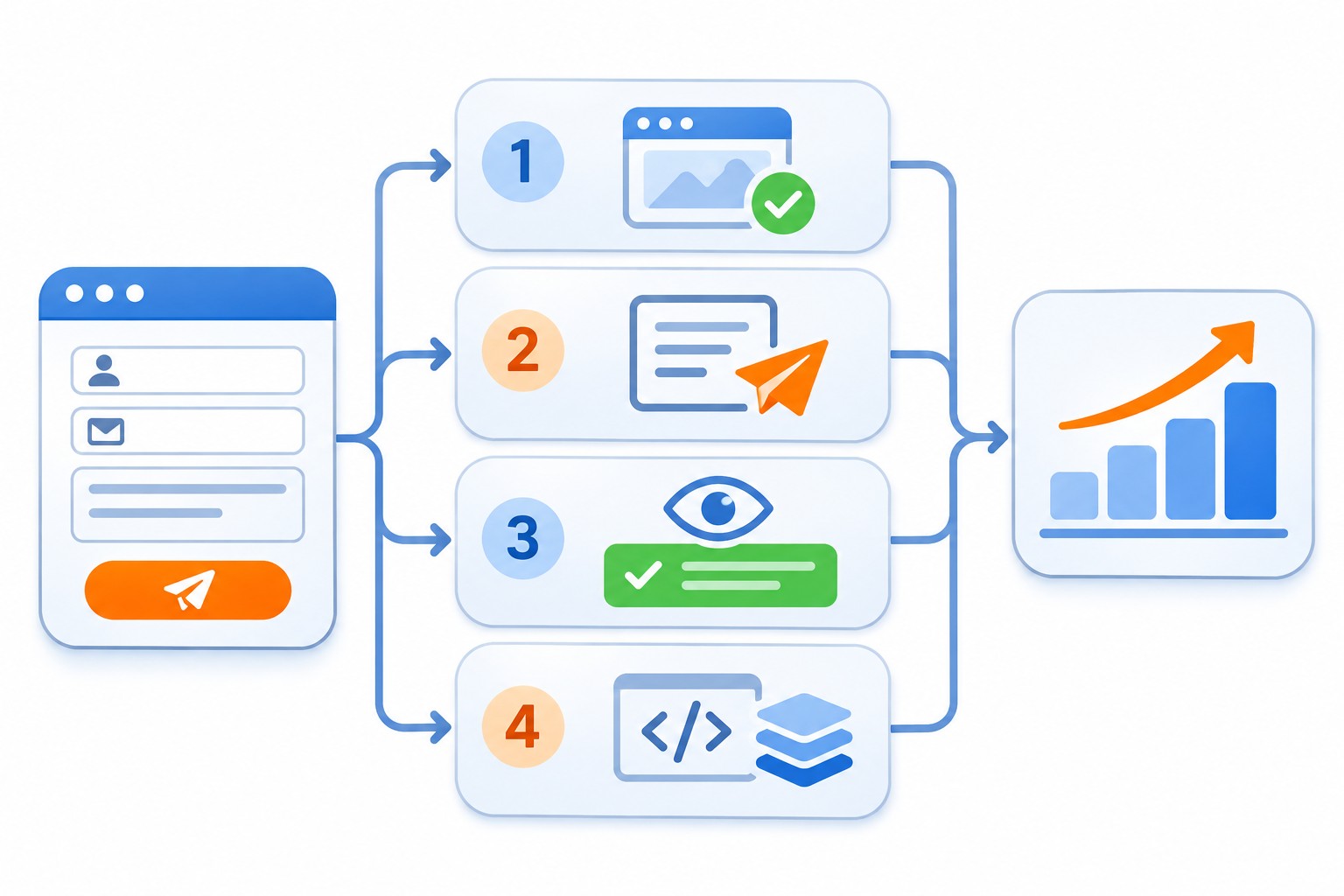
Here is the order I work through:
- A separate thank-you page exists: use a Page View trigger.
- A regular form with no separate page: use the Form Submission trigger with Check Validation.
- The built-in trigger does not fire, but a success message appears: use an Element Visibility trigger.
- None of these fit, accuracy matters or the form is complex: use a dataLayer event.
What about the automatic form_submit event from GA4 enhanced measurement? It comes from the Form interactions setting and is handy for a first look. But I don’t treat it as leads. It does not work on every form, and it picks up forms that are not leads, such as site search or a newsletter signup. I explain the differences in my guide to GA4 events.
Method 1. Thank-you page
This takes about five minutes.
- In GTM, open Triggers and click New.
- Choose the Page View type.
- Select Some Page Views.
- Set the condition: Page Path contains /thank-you/.
- Save it and attach the trigger to your event tag (covered below).
There is one catch: people can return to the page, refresh it or find it in search. Keep it out of the index and remove any direct links from menus. The address should open only after someone submits the form.
Method 2. Form Submission trigger
GTM’s built-in trigger listens for the browser’s standard form submit event.
- In Triggers, click New.
- Under Trigger Configuration, choose Form Submission.
- Turn on Check Validation.
- Turn on Wait for Tags if needed.
- Select Some Forms and add a condition so the trigger only runs on the right page or form.
- Save it.
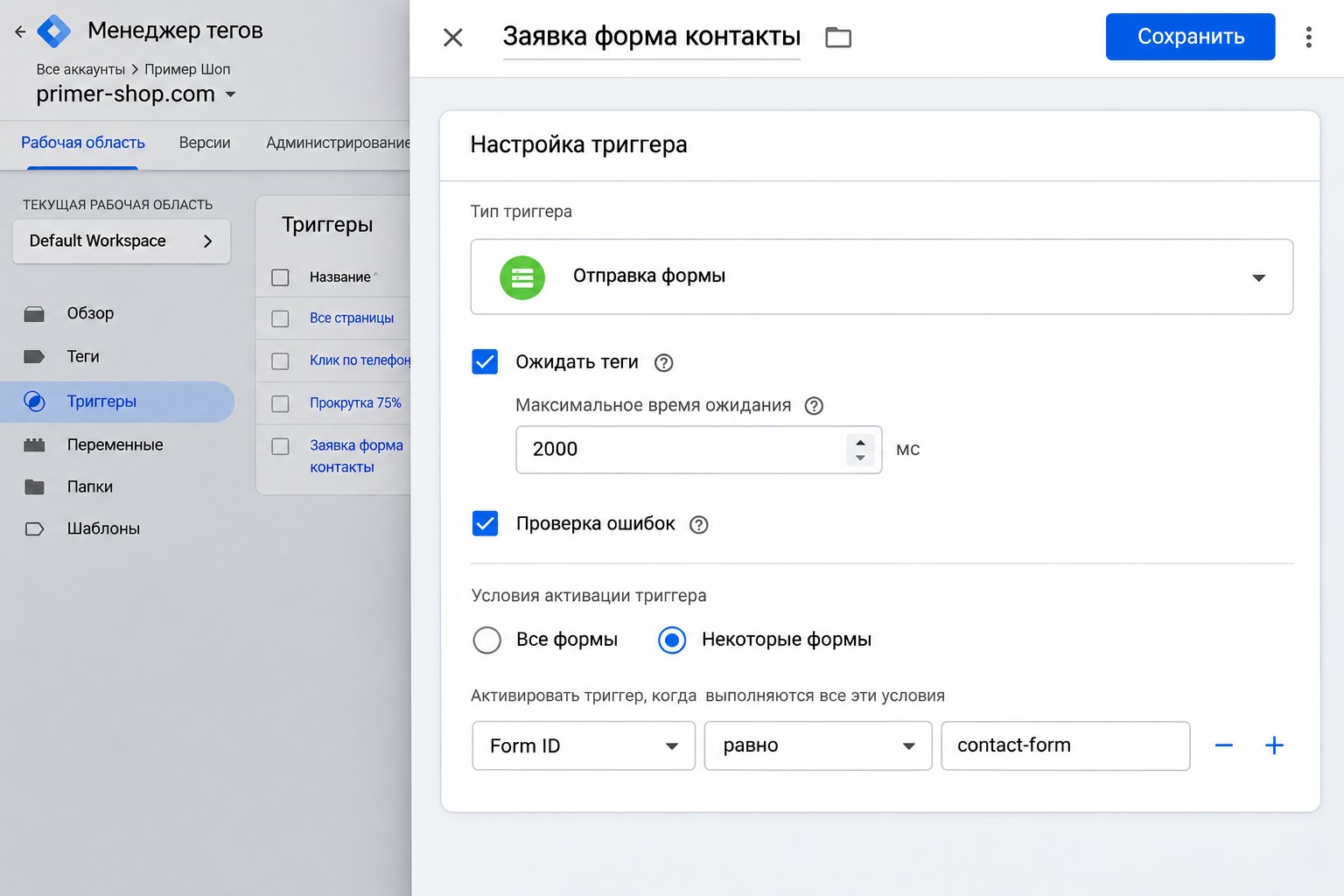
Here is what these options do:
- Wait for Tags. The form will not submit until the tags fire or the timeout runs out. Without it, a tag may not fire before the next page loads.
- Check Validation. The tag fires only after a successful submission. Without it, the tag fires on every attempt, even when fields are filled in wrongly.
To tell forms apart, enable the built-in form variables: open Variables, click Configure and tick, for example, Form ID and Form Classes. If the site has several forms, Form ID is a handy condition.
Always test this method in practice. Many modern forms submit through a script, and the built-in trigger may not fire at all, or may fire on a failed attempt. If that happens, move on to the next methods.
Method 3. Element Visibility trigger
This suits forms that do not reload the page: the lead goes through and a thank-you block appears. We count the appearance of that block.
- Send a test lead, right-click the success message and choose Inspect. Find the block’s ID or class.
- In GTM, create an Element Visibility trigger.
- Under Selection Method, choose ID or CSS Selector and enter the value, for example
.form-success. - Set the firing rule to once per page.
- Under Advanced, turn on Observe DOM changes. Without it, the trigger will miss a block that appears after the page has loaded.
- If the block is also used for other messages, add a condition for the right page.
The selector has to be precise. If the error block and the success block share a class, you’ll be counting failed attempts again. Google also warns that observing DOM changes can slow a site down if the selector matches too many elements.
Method 4. dataLayer event
This is the most accurate option: the site’s code tells GTM that the server has accepted the lead. Your developer adds something like this at the point of successful submission:
window.dataLayer = window.dataLayer || [];
window.dataLayer.push({
  event: 'form_success',
  form_name: 'contact'
});
Then in GTM:
- Create a Custom Event trigger named
form_success. Case matters. - Create a Data Layer Variable named
form_nameif you want to tell forms apart. - Attach the trigger to your event tag.
Many form plugins already announce a successful submission. For example, the WordPress plugin Contact Form 7 fires a wpcf7mailsent event in the browser. You can catch it with a Custom HTML tag and pass it to the dataLayer:
<script>
document.addEventListener('wpcf7mailsent', function (e) {
  window.dataLayer.push({
    event: 'form_success',
    form_name: 'cf7-' + e.detail.contactFormId
  });
});
</script>
Fire this tag on the pages with the form. For other plugins, check their documentation, as most have a similar event.
If the form is in a third-party iframe, your site’s GTM will not see it. Find out whether the service can send an event to the parent page or redirect to your own thank-you page.
How to send the lead to GA4
The trigger is ready, so now you need a tag.
- In GTM, open Tags and click New.
- Choose the Google Analytics: GA4 Event tag type.
- Enter your measurement ID in the G-XXXXXXXXXX format.
- In Event Name, enter
generate_lead. This is Google’s recommended event for a lead. - Add a parameter such as
form_nameif needed. To see it in reports, create a custom dimension in GA4 later. - Under Triggering, pick the trigger from one of the methods above.
- Save it.
If the site has several important forms, use one tag with a parameter rather than a separate event for each. Reporting is easier that way.
A word on personal data. Do not send a customer’s name, phone number or email to GA4. Be careful with the Form Text variable and with URL parameters, since the fields people type in can easily end up there.
How to test the setup
Do not publish the container until you have checked everything yourself.
- In GTM, click Preview, enter the site address and click Connect. Tag Assistant opens.
- Send a test lead and confirm the tag fired exactly once.
- Send the form with an error. The tag must not fire.
- Refresh the thank-you page, if you have one, and think about how repeat visits will be counted.
- Open the Realtime report or DebugView in GA4 and find
generate_lead. - Click Submit, then Publish, and name the version.
After publishing, mark generate_lead as a key event. A day later, compare the event count with the leads in your inbox or CRM. A small gap is normal, since ad blockers and declined cookies affect data collection. A big gap means something is wrong.
Common mistakes
- Counting clicks on the Send button. That click also happens with an empty form, so reports show more leads than your inbox.
- Check Validation is off. Same result: failed attempts get counted.
- A trigger on all pages and all forms. Newsletter signups and site search become leads.
- Double counting. Both the form tag and the thank-you page tag fire, or there are two containers with the same tags.
- Never comparing with real leads. Ads learn from the wrong numbers and budget goes to the wrong place.
- Set and forget. After a site update or a plugin change, IDs and classes change and tracking quietly dies. I recheck forms after every redesign.
FAQ
Why is the Form Submission trigger not firing?
Most often the form submits through a script without the browser’s standard event, so GTM never sees it. Another cause is that Check Validation is on and the site’s script cancels the standard event. Try the element visibility or dataLayer method.
How do I track a form in an iframe?
You can’t do it from the parent page’s container. Either install GTM inside the iframe (if it is your own site) or use what the service offers: a redirect to a thank-you page or an event sent to the parent page.
How do I track several forms on one site?
Use one generate_lead tag and pass the form name as a parameter. You could build separate triggers with Form ID conditions, but one shared tag is easier to maintain.
Can I send leads straight to Google Ads?
Yes. Either import the key event from GA4 or attach a Google Ads conversion tag to the same trigger. Just make sure one lead isn’t counted as a primary conversion twice.
Do I need user consent?
It depends on the country and audience. For European visitors you need a consent banner and a proper Consent Mode setup, and some data won’t be collected when people decline. If you are unsure, check with a lawyer.
Conclusion
First see what the form does after submission, then choose the simplest method that works on your site: a thank-you page, Form Submission, element visibility or dataLayer. Send generate_lead, test it in Preview and compare the numbers with real leads.
If you would rather not handle this yourself, I can set up your analytics for you. And if your ads are already running and you doubt the numbers, order a free express audit: I’ll review the account and your lead tracking and tell you what to fix first. You’ll find more walkthroughs on my YouTube channel.