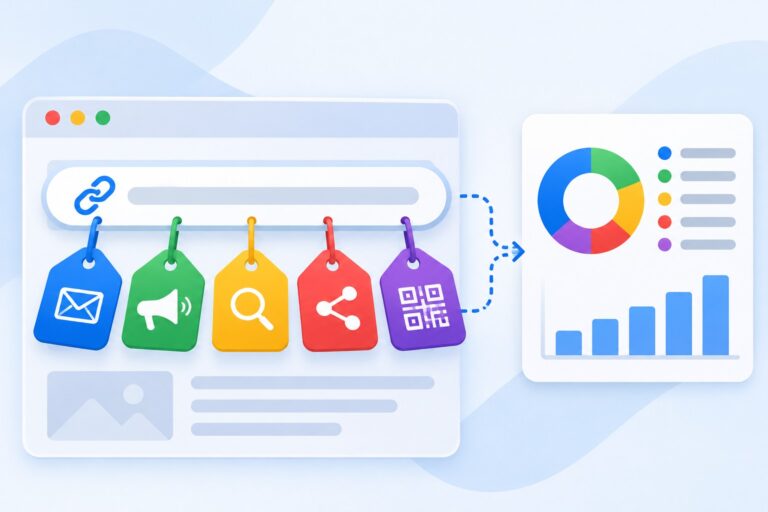
To see Telegram and Viber clicks in your analytics, you need one “Just Links” click trigger in Google Tag Manager with a condition on the link address (t.me for Telegram, viber:// for Viber) and a GA4 tag that sends an event such as click_messenger. The setup takes 15-20 minutes, and you usually don’t need a developer.
I’ve been setting up and managing Google Ads and analytics for more than 9 years. In niches where customers prefer to message rather than call, these clicks are often the main conversion. If you don’t track them, your ads look unprofitable even though leads are coming in. Below I’ll show how to figure out what kind of button you have, set up triggers and tags, test everything and pass the clicks to Google Ads.
A quick note: the screenshots in this article show the Russian version of the Google Tag Manager interface, but the menu structure is the same in English.
Why you should track messenger clicks
Many people don’t want to fill in a form or make a call. It’s easier for them to tap the Telegram or Viber icon and type “How much is it?”. If your site has these buttons but GA4 and Google Ads don’t count them, you’re missing part of the picture:
- campaigns that drive messenger inquiries look like campaigns with no conversions;
- Smart Bidding strategies get no signals and learn only from forms and calls;
- you can’t tell which channel actually brings in customers.
A click on a messenger button is not the same as a lead: the person may open the chat and never write. But it’s a strong intent signal, and you need to see it.
Step 1. Check how the button is built
Before you start, open your site, right-click the messenger icon and choose “Inspect”. You want to know what kind of element it is and where it leads. Usually it’s one of these:
- A regular Telegram link:
https://t.me/usernameorhttps://telegram.me/username. Sometimestg://resolve?domain=username. - A regular Viber link:
viber://chat?number=%2B380XXXXXXXXXfor a personal chat orviber://pa?chatURI=...for a business account. - A chat widget from a third-party service: the buttons are drawn by a script, often inside an iframe, and there’s no link in the page code.
If it’s a regular link (an a tag with an address), it’s simple: we use the built-in click trigger. If it’s a widget, see the common problems section below.
Step 2. Enable the built-in click variables
In Google Tag Manager, click variables are disabled by default. Without them, the trigger can’t check the link address.
- Open your container and go to “Variables”.
- In the “Built-In Variables” block, click “Configure”.
- Tick the variables in the “Clicks” group: “Click URL”, “Click Text”, “Click Element”, “Click Classes”, “Click ID”.
- Close the panel, changes are saved immediately.
If you’re not sure how a tag differs from a trigger and why variables matter, read my article on tags, triggers and variables in Google Tag Manager first.
Step 3. Create triggers for Telegram and Viber
I create a separate trigger for each messenger: it’s easier to test and clearer in reports.
- Open “Triggers” and click “New”.
- Name the trigger, for example “Click – Telegram”.
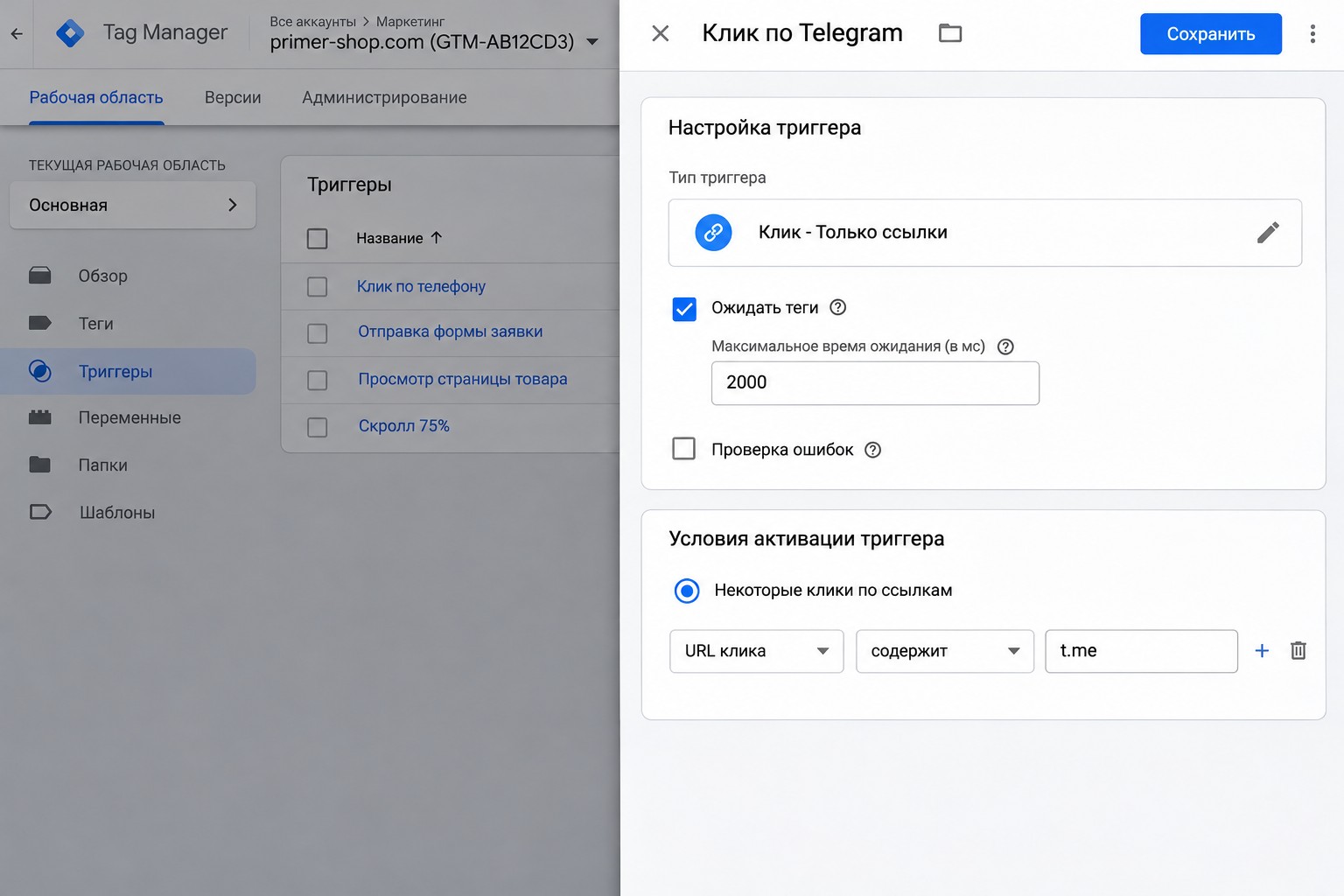
- In “Trigger Configuration”, choose “Click – Just Links”.
- You can enable “Wait for Tags” if the link opens in the same tab: GTM will then have time to send the event before the page changes. Keep the max wait time at 2000 ms. Leave “Check Validation” off, as it can get in the way of viber:// links.
- Under “This trigger fires on”, select “Some Link Clicks”.
- Set the condition: “Click URL” “contains” “t.me”.
- Save.
For Viber, create a second trigger “Click – Viber” with the condition “Click URL” “starts with” “viber://”.
If Telegram links on your site come in different formats (t.me, telegram.me, tg://), use the “matches RegEx” operator instead of “contains” with the value t\.me|telegram\.me|tg:. Escape the dot with a backslash, otherwise it means “any character”.
Step 4. Create GA4 event tags
Now you need a tag that sends the event to Google Analytics 4. I use one event name for all messengers and pass the messenger itself as a parameter. That way you have a single event in reports, broken down by parameter.
- Open “Tags” and click “New”.
- Name the tag, for example “GA4 – Telegram click”.
- Tag type: “Google Analytics: GA4 Event”.
- In “Measurement ID” (Tag ID), enter your GA4 data stream ID (it starts with G-).
- “Event Name”:
click_messenger. - Under “Event Parameters”, add
messengerwith the valuetelegram. It’s also useful to addlink_urlwith the Click URL variable as its value: this shows which chat was clicked if you have several. - In “Triggering”, choose “Click – Telegram”.
- Save.
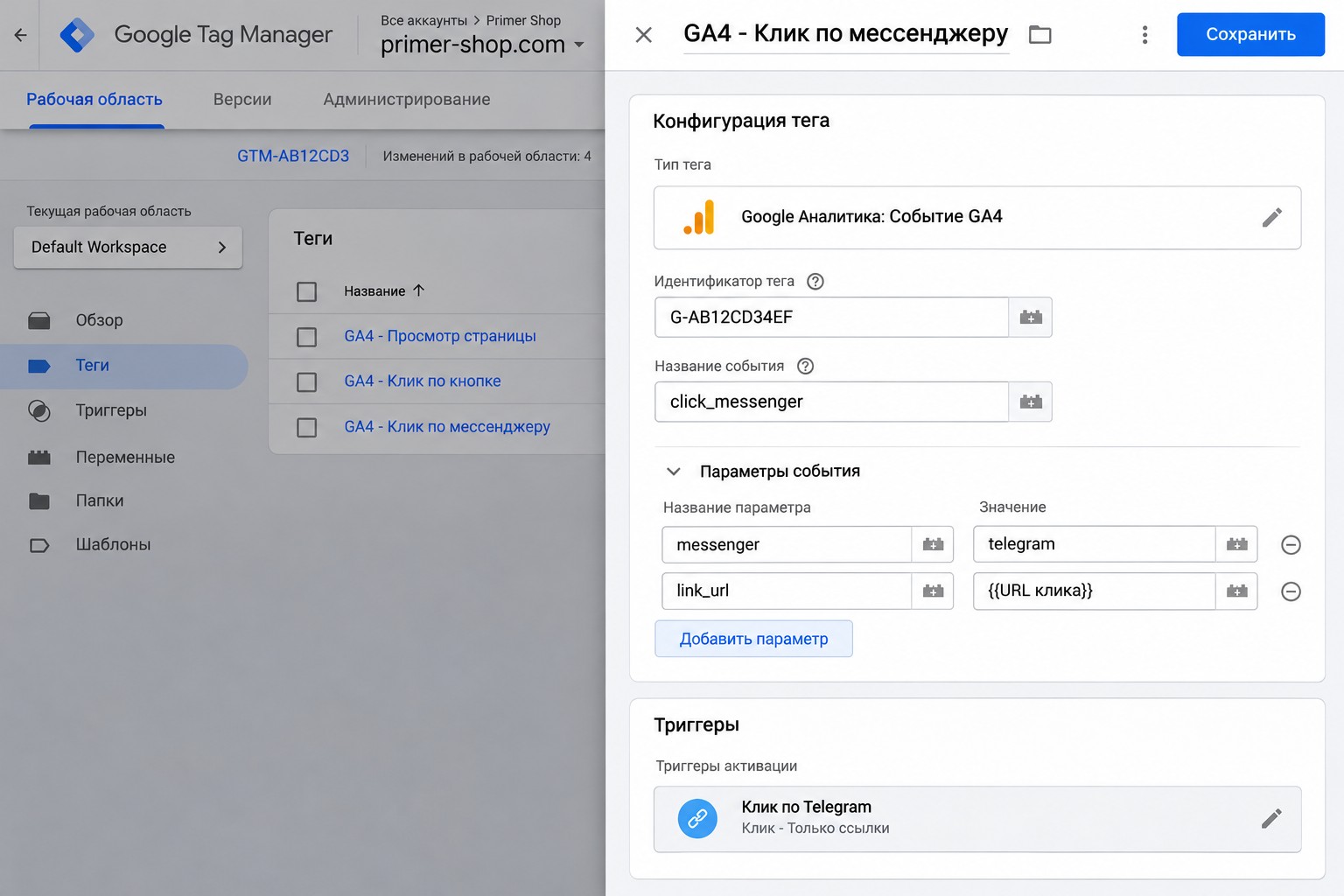
For Viber, copy the tag, change the messenger value to viber and the trigger to “Click – Viber”.
Use lowercase Latin letters and underscores for event names. Don’t use names that Google reserves for automatic events, and don’t rename the event later: the history in reports will start over.
An option for sites with many messengers
If you have lots of buttons (Telegram, Viber, WhatsApp, Messenger), one trigger and one tag can be enough. Use a “Click – Just Links” trigger with “Click URL” “matches RegEx” t\.me|viber:|wa\.me|m\.me. Take the messenger parameter value from a “RegEx Table” variable that maps each URL pattern to a messenger name. It’s easier to maintain but harder to debug, so if you’re new to GTM, start with separate tags.
Step 5. Test in Preview mode
I never recommend publishing a container without testing.
- Click “Preview” in the top right corner of GTM and enter your site address.
- On the site that opens, click the Telegram button.
- Go back to the Tag Assistant tab and find the “Link Click” event in the left column.
- Make sure “GA4 – Telegram click” is in the list of tags that fired.
- Repeat for Viber.
If Viber isn’t installed on your computer, the browser may ask whether to open the app. That’s fine, the event should still appear in Tag Assistant.
Next, check that the event reached GA4: in “Admin”, open DebugView and see whether click_messenger appears with the messenger parameter. If everything looks right, go back to GTM, click “Submit” and publish a version with a clear description, such as “Telegram and Viber clicks”.
Step 6. Make the parameter visible in reports and mark a key event
The messenger parameter won’t show up in standard GA4 reports until you register it.
- In GA4, open “Admin”, then “Custom definitions”.
- Create an event-scoped custom dimension: name “Messenger”, event parameter
messenger. - Data starts collecting from the moment you create it, it won’t appear retroactively.
To count messenger clicks as conversions, mark click_messenger as a key event. I covered how to do it and what to think through in advance in my article on GA4 key events.
Step 7. Send the clicks to Google Ads
There are two options:
- Import from GA4. If your GA4 and Google Ads accounts are linked, create a conversion action in Google Ads that imports the
click_messengerkey event. This is the simplest way. - A separate Google Ads conversion tag in GTM with the same triggers. Data arrives faster and matches ad clicks more precisely, but you have one more tag to maintain.
One important point: I usually set messenger clicks as a secondary action if the account has more reliable conversions, such as form submissions or calls longer than a minute. If you make the click a primary conversion, the bidding strategy will start looking for people who click buttons rather than people who actually buy. If messengers bring most of your inquiries, I make them primary, but keep an eye on lead quality.
Common mistakes
- Click variables aren’t enabled. “Click URL” isn’t available in the trigger condition, so nothing works.
- The button is a widget. Built-in triggers can’t see clicks inside a third-party iframe. Check the widget’s documentation: many can push events to the dataLayer or straight to GA4.
- The condition is too broad. For example, “contains” “telegram” also fires on a link to your Telegram channel in the footer. If the channel shouldn’t count as an inquiry, make the condition more specific, using the username.
- One button is counted twice. This happens when the site has both a regular link and a script that also sends an event. Check in Preview how many times the tag fires.
- The container isn’t published. Everything works in Preview, but reports are empty because the version was never published.
- A click is reported as a lead. In reports for management, show messenger clicks separately from real leads, otherwise your cost per inquiry will look lower than it is.
Similar mistakes happen with form tracking, which I covered in my article on tracking form submissions with Google Tag Manager.
FAQ
Can I find out whether the person actually sent a message after clicking?
Not with Google Tag Manager: it only sees the click on your site, and what happens inside the messenger app is invisible to the site. To connect conversations with ads, people use unique links or promo codes per source, or a CRM that pulls in chats.
Why does GA4 show fewer clicks than Tag Assistant?
Some visitors decline cookies, some use ad blockers, and some events are filtered out as bot traffic. A small gap is normal. If the gap is large, check your consent banner and whether people leave the page before the tag has time to fire.
Should I count clicks to a Telegram channel or only to a chat?
It depends on your goal. A channel subscription is useful, but it’s not an inquiry. I keep them apart: a chat with a manager is its own event, and a channel click is either a separate event or not tracked at all.
Does this work for WhatsApp?
Yes, the logic is the same. WhatsApp links usually look like https://wa.me/number or https://api.whatsapp.com/send?phone=..., so you write the trigger condition for those addresses.
Conclusion
Tracking Telegram and Viber clicks takes one session: enable the click variables, create a “Just Links” trigger with a condition on the link address, send a click_messenger event with a messenger parameter to GA4, test in Preview and publish. After that, you can mark the clicks as a key event and pass them to Google Ads.
If you’d rather not deal with this yourself, I can set up your analytics for you. And if your ads are already running and you’re not sure your conversions are counted correctly, order a free Google Ads express audit: I’ll review your account and tell you what to fix first. For more breakdowns of Google Ads, analytics and Tag Manager, check out my YouTube channel.