
The search terms report shows the exact phrases people typed into Google before they saw your ad. To clean junk out of my traffic, I open this report regularly, flag irrelevant searches and add them as negative keywords, and I promote the searches that convert into proper keywords. It is the simplest and most underrated habit for saving budget in any Google Ads account.
In this article I will show where to find the report in 2026, how to read it, how I tell junk from good traffic and how often to come back to it.
What the search terms report is
Keywords and search terms are easy to mix up. A keyword is what you add to an ad group yourself. A search term is what a person actually typed into the search box. Google matches the search term to your keywords according to match type rules, and the broader the match type, the more varied the searches that trigger your ads.
Say you have the keyword “washing machine repair” in broad match. Your ad may show for “washing machine repair at home”, which is great. It may also show for “how to fix a washing machine yourself”, “washing machine spare parts” or “appliance repair technician jobs”. That is junk: you pay for every click, and none of those people will become customers.
I covered how broad, phrase and exact match work in detail in my article on Google Ads match types. The key point here is that you need to check the search terms report with any match type, just more often with broad match.
Where to find the search terms report in Google Ads
The Google Ads interface changes from time to time, but in 2026 the path looks like this:
- Open your Google Ads account and click “Campaigns” in the left menu.
- Expand “Insights and reports”.
- Select “Search terms”.
- Choose the date range at the top. For a first review I use the last 30 days, for routine cleanups the last 7 days.
- To look at a single campaign or ad group, select it in the navigation panel and the report filters automatically.
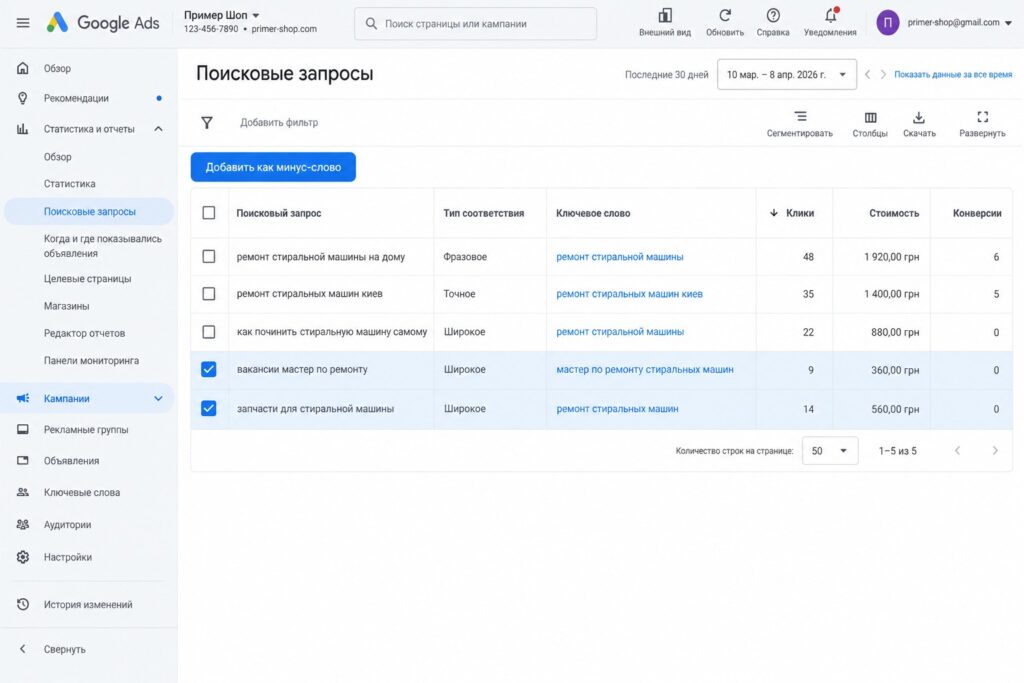
You can also build this report in the Report editor, but you cannot add negatives in one click from there, so the standard page is more convenient for cleanup.
Which columns to turn on
The default table does not show everything you need. I always add these columns (the columns icon above the table):
- Keyword. Shows which of your keywords matched the search. Without it you cannot see where the junk came from. According to Google’s help center this column is hidden by default and lives under “Attributes”.
- Match type. Shows whether the search matched exactly, as a phrase, as broad match or as a close variant.
- Added/Excluded. Shows whether the search has already been added as a keyword or a negative.
- Conversions, cost per conversion, conversion rate. You cannot judge a search term by results without them.
- Clicks, cost, CTR. Basic metrics to understand the scale.
If conversions are not set up in the account, cleanup turns into guesswork. Set up lead and sales tracking first, then optimize based on it.
How I tell junk from good traffic
I sort the table by cost, highest first. That way the searches that ate the most money are at the top, and decisions about them have the biggest impact. Then I go down the list and ask myself a few questions.
1. Could this person become a customer
This is the main filter. “Buy orthopedic mattress” is a commercial search: the person is ready to buy. “How to choose a mattress article” is informational: the person is still researching. For most businesses with a limited budget, I cut informational searches on the Search Network.
Typical junk markers I see in almost every niche:
- “free”, “download”, “DIY”, “how to make”;
- “jobs”, “careers”, “salary”, “training”, “course” (unless you are a school or an employer);
- “reviews” + a competitor’s name, if you do not want to compete on brand terms;
- “used”, “second hand”, if you only sell new items;
- cities and regions where you do not operate;
- products and services you do not offer.
2. Does the search match the landing page
Sometimes a search is fine on its own but lands in the wrong place. For example, someone searches for “fridge repair” and sees an ad triggered by a washing machine keyword. I would not exclude that search globally. I would move it to the right ad group with the right page. More on that in my article on Google Ads account structure.
3. What the numbers say
If a search has lots of clicks and zero conversions while other searches in the same ad group convert, that is a reason to exclude it. But do not jump to conclusions on small volumes. Three clicks without a lead prove nothing. My rule of thumb: if a search has spent about two to three times your target cost per lead without a single conversion, it is a candidate for exclusion. Exact thresholds depend on your niche and average order value.
4. Should the search become a keyword
This is the other side of cleanup. If a search consistently brings leads but only shows thanks to broad match, I add it as a separate keyword, often in exact or phrase match. That gives me better control over the bid and the ad copy for it.
How to add negative keywords straight from the report
- Tick the irrelevant searches.
- Click “Add as negative keyword” above the table.
- Choose where to add them: to the ad group, the campaign or a negative keyword list.
- Check the match type. By default, Google adds negatives from the report in exact match, so only that full phrase gets excluded.
- Click “Save”.
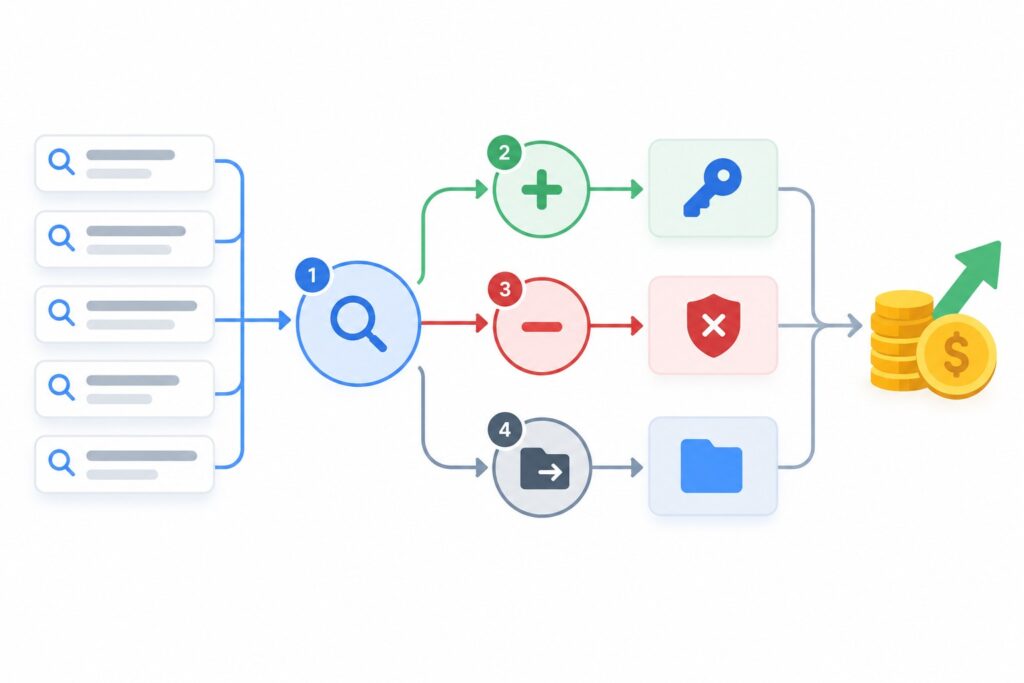
Step 4 is the most important one. If you add “washing machine repair technician jobs” in exact match, only that exact phrase is excluded. Tomorrow “washing machine technician job” will show up and you will pay for it again. That is why I rarely add whole search terms. More often I pull out the junk word (“jobs”) and add it in broad match to a shared negative keyword list.
Negative keyword levels: what goes where
Negative keywords work at different levels, and the level decides what exactly they block.
- Ad group. For routing traffic between ad groups. For example, in the “washing machine repair” ad group I exclude “fridge” so that search goes to its own ad group.
- Campaign. For words that do not fit this specific campaign but may fit another one.
- Negative keyword list. Common junk words that fit every campaign: “free”, “jobs”, “DIY”. One list can be applied to many campaigns at once.
- Account level. In account settings you can add negatives that apply to all Search and Performance Max campaigns. I only put things there that are never needed, such as unwanted brands or topics.
How often to clean up search terms
It depends on budget and campaign stage:
- First 2 weeks after launch. Every 2-3 days. This is when junk shows up the most, especially with broad match.
- Stable campaign with a meaningful budget. Once a week.
- Small budget and a narrow keyword set. Every 2 weeks or once a month, when enough data has built up.
A good habit is to track how the share of irrelevant searches changes after each cleanup. Over time your negative list grows and the junk shrinks noticeably.
What the report does not show
It is important to understand the limits so you do not draw the wrong conclusions.
- Not every search is shown. Google hides low-volume searches for privacy reasons. The total row shows how many clicks and how much spend went to hidden searches. In some accounts this is a noticeable share.
- Performance Max works differently. It has its own search terms report, but the data is thinner than in Search campaigns and it does not cover every channel.
- Negatives do not expand to misspellings and synonyms the way keywords do. A broad match negative does not block close variants automatically. If you exclude “free”, think about “freebie” and “no cost” too.
Common cleanup mistakes
- Excluding too aggressively. I sometimes see accounts with words like “price” or “cheap” in the negatives “to save money”. In reality this cuts off buyers who are ready to purchase.
- Adding a negative that overlaps with a keyword. If your keyword is “bosch washing machine repair” and “bosch” is in your negatives, the campaign simply stops showing. Google warns about such conflicts, but people do not always notice.
- Looking at clicks instead of money. A search with 10 expensive clicks can cost more than one with 100 cheap clicks. Sort by cost.
- Cleaning once and forgetting about it. People keep searching in new ways, and Google keeps broadening matching. Cleanup has to be regular.
- Pausing a keyword instead of adding a negative. If a keyword works overall but sometimes catches junk, negatives solve the problem, not pausing the keyword.
If your clicks are expensive and leads are scarce, junk traffic is often one of the main reasons. I covered other causes in my article on how to lower CPC in Google Ads.
FAQ
Why does the report show searches that look nothing like my keywords?
Usually because of broad match and close variants. Google matches searches by meaning rather than exact words, and sometimes it interprets that meaning more broadly than you would like. The fix is negative keywords and, if there is a lot of junk, moving some keywords to phrase or exact match.
How many negative keywords can I add?
The limits are high: campaign-level negatives and negative keyword lists allow thousands to tens of thousands of terms, which is more than enough for a typical business. Check the Google Ads help center for current numbers, as they change from time to time.
Can I add a negative keyword to all campaigns at once?
Yes. Create a negative keyword list under “Tools”, “Shared library”, “Negative keyword lists” and apply it to the campaigns you need. Or use account-level negatives for things you never want anywhere.
Do I need to clean up search terms if the campaign uses exact match?
Yes, just less often. Exact match also includes close variants, such as searches with the same meaning in a different word order. There is less junk, but it does happen.
Why does part of my spend go to hidden searches?
These are low-volume searches that Google does not display to protect user privacy. You cannot change that, but the better your campaign structure and the more precise your keywords, the less random traffic ends up there.
Conclusion
The search terms report is your main tool for controlling what you pay for in Google Ads. Open it regularly, sort by cost, cut junk with negatives at the right level and promote winning searches to keywords. After a month of this routine, you will usually see that your budget is spent much more carefully.
If you would like me to review your account and show how much money goes to irrelevant searches, request a free Google Ads express audit. I also publish setup walkthroughs on my YouTube channel, so feel free to subscribe.