
Google Ads assets, which used to be called extensions, are the extra blocks that show with a regular search ad: sitelinks, callouts, a phone number, structured snippets and more. The assets themselves are free. You pay only for clicks, and your ad becomes larger and easier to understand. In every Search campaign I recommend filling in at least 4 types: sitelinks, callouts, structured snippets and a phone number if you take calls.
I have been setting up Google Ads for more than 9 years, and assets are one of the fastest wins in any account: an hour of setup, and your ads work better for months. Below I cover what to fill in, the limits, how to add everything step by step, and the mistakes that usually cost impressions.
What assets are and why you should not skip them
In Google Ads, an asset is any piece of your advertising that can be added and evaluated on its own. Headlines and descriptions are assets too. Most of the time, though, people use the word for the blocks that appear alongside an ad. Older articles still call them extensions.
Here is what they do in practice:
- your ad takes up more space on the results page and stands out from competitors;
- people get answers before they click: delivery, warranty, price, terms;
- they can choose where to go, not just the home page but the section they need;
- they can call you straight from the ad;
- the expected impact of assets is factored into Ad Rank.
You do not pay for an asset to show. Google charges only for clicks, and a sitelink click costs the same as a headline click. You are charged for no more than two clicks per ad impression, across the ad and its assets.
One thing to keep in mind: adding an asset does not guarantee it will show. The system decides at every auction based on the query, the device, Ad Rank and the expected benefit. If an ad does not reach the minimum rank for assets, they will not appear. So assets do not fix a weak ad, they strengthen a decent one. If your ads are not ready yet, start with my guide on how to write a responsive search ad.
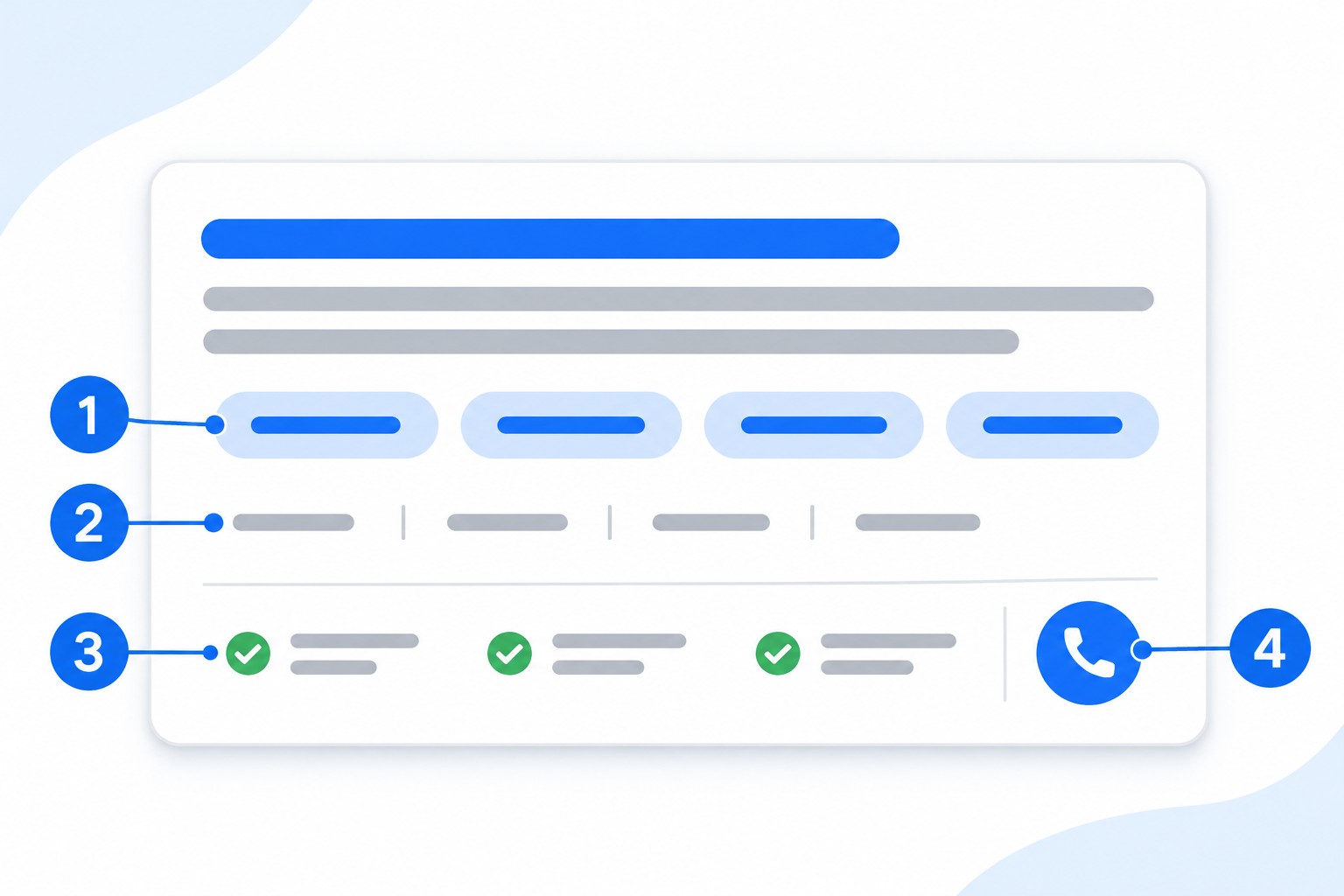
The diagram shows the parts: 1 is sitelinks, 2 is callouts, 3 is structured snippets, and 4 is the call button.
Which assets are available for Search campaigns
The main types for Search are:
- sitelinks: separate links to pages on your site;
- callouts: short benefit phrases with no link;
- structured snippets: a header from a set list plus a list of values;
- call assets: a phone number or a call button;
- location assets: your address, directions and opening hours;
- price assets: services or products with prices;
- promotion assets: a discount or special offer;
- image assets: a picture next to your ad;
- lead form assets: a form that people fill in right in the ad;
- app assets: a link to download your app.
Below I go through the four types almost every business needs. Add the others if they fit: locations for places customers visit, prices for services with a clear price list, promotions only while a real offer is running.
Sitelinks
Sitelinks take people to specific pages: services, pricing, reviews, contact details, catalog sections. For me they are a must in any Search campaign.
Requirements and limits:
- link text: up to 25 characters;
- two description lines: up to 35 characters each. They are optional, but Google recommends filling them in;
- Search campaigns show at least 2 links, up to 6 on desktop and up to 8 on mobile as a carousel;
- for your important campaigns, Google suggests at least 6 sitelinks with descriptions.
How I choose them: first I look at what people want to know before they get in touch. For services that is usually “Pricing”, “Our work”, “Reviews”, “How it works”. For a store it is the main categories, “Shipping and payment”, “Sale”. Each link should go to its own page, and that page should deliver what the link promises. If your link says “Pricing” and opens a home page with no prices, people will simply leave.
A common mistake is adding 6 links at account level and ignoring campaigns. When a campaign promotes one service, generic links often do not help. It is better to add links at campaign or ad group level that continue that specific topic.
Callouts
Callouts are short phrases with no link. They highlight what did not fit in the ad or what sets you apart: warranty, timing, terms, experience.
- length: up to 25 characters;
- up to 10 callouts can show, and the real number depends on the device and screen width;
- Google suggests adding general callouts at account or campaign level and specific ones at ad group level;
- if an ad group has its own callouts, they take priority.
Good callouts are specific: “Next-day delivery”, “24-month warranty”, “No prepayment”, “Same-day visit”. Weak ones sound like everyone else: “Personal approach”, “High quality”, “Best service”. Those words tell people nothing, so I do not use them.
A few rules can get callouts disapproved:
- no exclamation marks or symbols used only to grab attention;
- no punctuation at the start of the text;
- no repeated text across callouts, ad text and sitelinks in the same ad group, campaign or account.
The last one is often missed. If your ad already says “Free shipping”, the same callout may be disapproved. If something gets rejected, work through the steps in my guide on disapproved ads.
Structured snippets
This asset is a header you pick from a set list plus a list of values. For example, the header “Services” with the values “Installation”, “Repair”, “Maintenance”, “Diagnostics”. It shows your range right in the ad.
What matters here:
- you need at least 3 values, and Google recommends 4 or more;
- each value can be up to 25 characters;
- values must match the header, or the snippet may be disapproved;
- do not put benefits or sales phrases here, that is what callouts are for.
Most businesses do fine with “Services”, “Types” or “Brands”. The difference is easy to remember with shoes: “Types” is for broad categories (shoes) and “Styles” is for narrow ones (sandals). If you sell services, a single “Services” header is usually enough.
Phone number: the call asset
A call asset adds your number or a call button to the ad. On mobile a button appears under the ad. On desktop a call button shows the number and a QR code to dial from a smartphone. A click on the button costs the same as a headline click.
It suits a business that really answers the phone: services, repairs, delivery, urgent requests. If nobody picks up, this asset just burns budget.
Check these points first:
- The number must belong to the business you advertise. Premium-rate numbers, fax numbers and vanity letter numbers are not allowed.
- It must be in international format, such as +12345678900, with no spaces.
- The same number must appear in your site’s source code, or the domain must be verified in Google Search Console.
- Set a schedule that matches your working hours, so the button does not show at night when nobody can answer.
If these requirements are not met, the ad can be disapproved as “Unverified phone number”. One more detail: when you use a location asset and a call asset together, the ad shows the phone number from the location.
To see results, turn on call reporting and set up conversions. Google can use a forwarding number to track calls, and it creates a default conversion action for calls from ads.
How to add assets: step by step
The steps are the same for all types. Check the menu names against your interface, as Google changes them from time to time.
- Sign in to your Google Ads account.
- In the left menu, open “Ads & assets”, then “Assets”. Some Help pages describe this path as “Campaigns” and “Assets”. It is the same section.
- Click the plus button and choose a type: “Sitelink”, “Callout”, “Structured snippet” or “Call”.
- Under “Where to add?”, choose account, campaign or ad group level.
- Create a new asset or pick an existing one.
- If needed, open the additional settings to set dates and a schedule.
- Click “Save”.
To review what you already have, go to “Assets”, set the table view to “Association”, and pick a type above the table. You will see the level, status and stats.
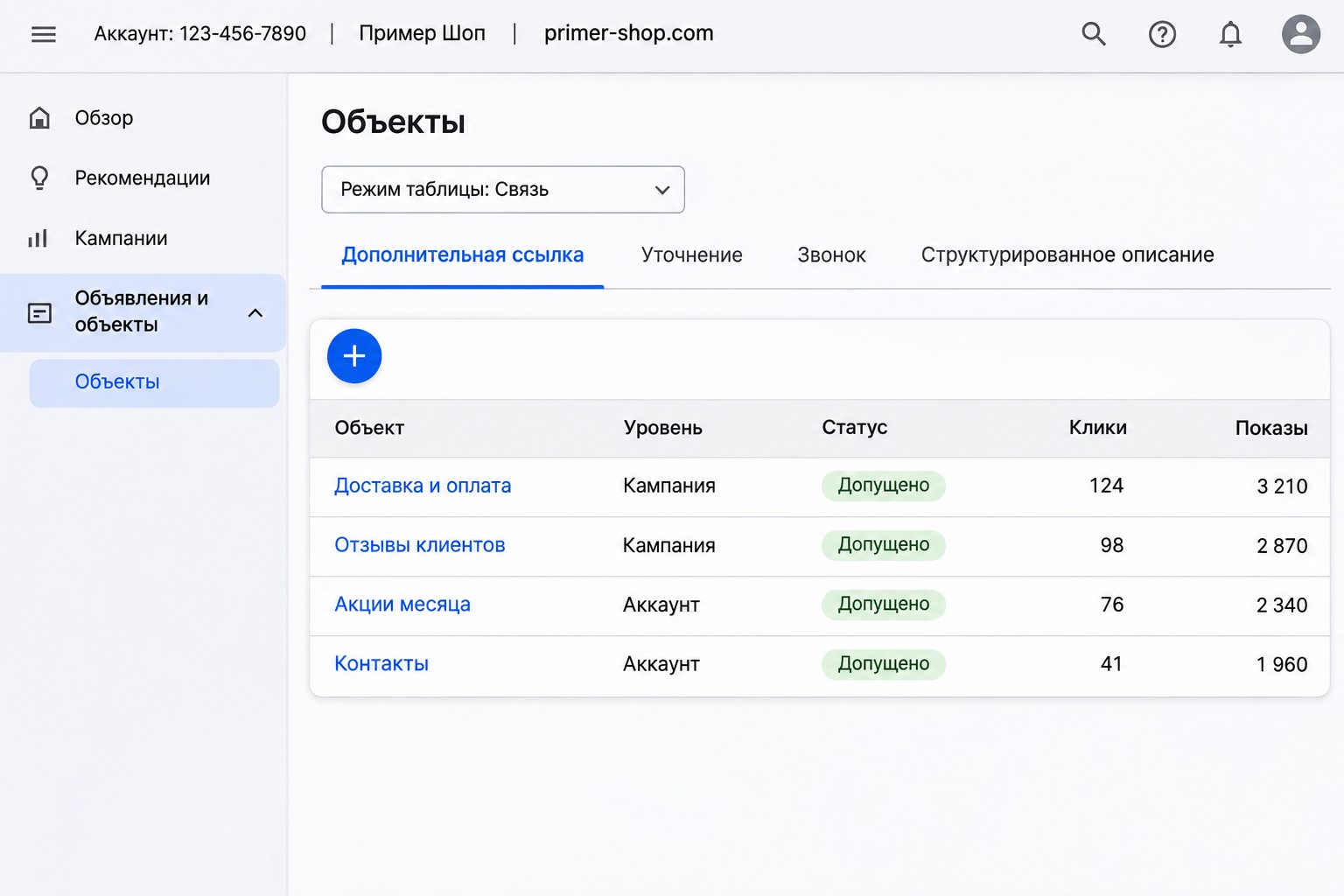
The screenshot shows the Russian interface. The layout is the same in English.
Which level to add them at
Assets work at three levels, and the lowest one has priority. If an ad group has its own asset, the system uses it rather than the one from the campaign or account.
This is how I do it:
- Account level: general things that fit all campaigns. Warranty, payment terms, phone number.
- Campaign level: links and snippets for a specific line of business.
- Ad group level: narrow assets if the group covers a single service or product.
I explain the logic in more detail in my article on Google Ads account structure. If you do not have a campaign yet, start with setting up a Search campaign from scratch and add assets at launch.
Automated assets
Google can create assets from your site on its own: sitelinks, callouts, structured snippets and others. This helps when an account is small and you have not filled everything in yourself. But automation sometimes shows what you would not choose: an old promotion, an inaccurate phrase, the wrong page.
I review what is showing once a month. You can turn off some of them through “Assets”, the “Association” view, the three-dot menu and “Account-level automated assets”.
Common mistakes
- No assets at all. Your ad takes up less space, and competitors with assets look stronger.
- All sitelinks go to the same page or to the home page.
- Callouts made of generic words instead of real terms.
- Callouts that repeat the ad text and get disapproved.
- A phone number that shows at night and on weekends with nobody to answer.
- A promotion ended, but its asset keeps running. Set an end date for temporary offers right away.
- Assets added once and never reviewed. Check the report monthly, remove weak ones and test new wording.
Not sure your setup is right? I can set up the account for you, or you can use the steps above yourself.
FAQ
How much do ad assets cost?
The assets themselves are free. You pay for clicks on the ad and its assets as usual, and for no more than two clicks per impression.
Why are my assets added but not showing?
Google decides at every auction. Common reasons are a low Ad Rank, an asset still under review or disapproved, or a poor fit with the query or device. Check the status under “Assets” in the “Association” view. It is normal for an asset not to show on every impression.
How many sitelinks should I add?
At least 2, but 6 with descriptions is better for important campaigns. That gives the system options for both desktop and mobile.
What is the difference between callouts and structured snippets?
Callouts are free text about benefits and terms. Structured snippets are a list of specific items under a set header, such as services or brands.
Do I need assets if my ads run only on mobile?
Yes. On mobile, assets take up a good part of the screen, and the call button often becomes the main action. Just make sure your site and phone can handle that traffic.
Conclusion
Assets are a quick way to make your ads more visible and useful without raising bids. Start with the minimum: sitelinks, specific callouts, structured snippets and a phone number with a schedule. Review the stats and automated assets once a month.
If you want me to check your ads and assets, request a free express audit. I also publish practical Google Ads walkthroughs on my YouTube channel, so feel free to subscribe.