
Short answer: a Shopping campaign shows your store’s products as cards with an image, price and store name right in Google Search and on the Shopping tab. To launch one, you need linked Merchant Center and Google Ads accounts and approved products in your feed. Then you choose a Standard Shopping campaign, split products into groups, set bids and clean up search terms regularly.
I’ve been managing Google Ads for more than 9 years, and for online stores Shopping ads almost always drive most of the sales. Below I explain how I set them up and where money usually gets wasted.
What a Shopping campaign is and how it differs from Search
In a Search campaign, you choose keywords and write ads. A Shopping campaign has no keywords: Google matches searches using your feed data, meaning the product title, description and category. The ad is also built automatically from the image, title and price.
Two important takeaways:
- feed quality directly affects your ads: poor product titles mean irrelevant traffic;
- you control your ads through product group structure, bids and negative keywords.
Google Ads currently offers two ways to advertise products: Standard Shopping and Performance Max. This article covers Standard Shopping. I explain how the two differ and work together below.
What you need before launch
- A Google Merchant Center account with a verified website and shipping and returns set up.
- Products that have passed review. Disapproved products don’t show in ads.
- A link between Merchant Center and Google Ads.
- Conversion tracking: purchases, ideally with order value. Without it, you can’t manage bids properly. If tracking isn’t in place yet, my analytics setup service can help.
If anything is missing, start there. Running Shopping ads without conversion tracking means spending your budget blind.
How to create a Standard Shopping campaign: step by step
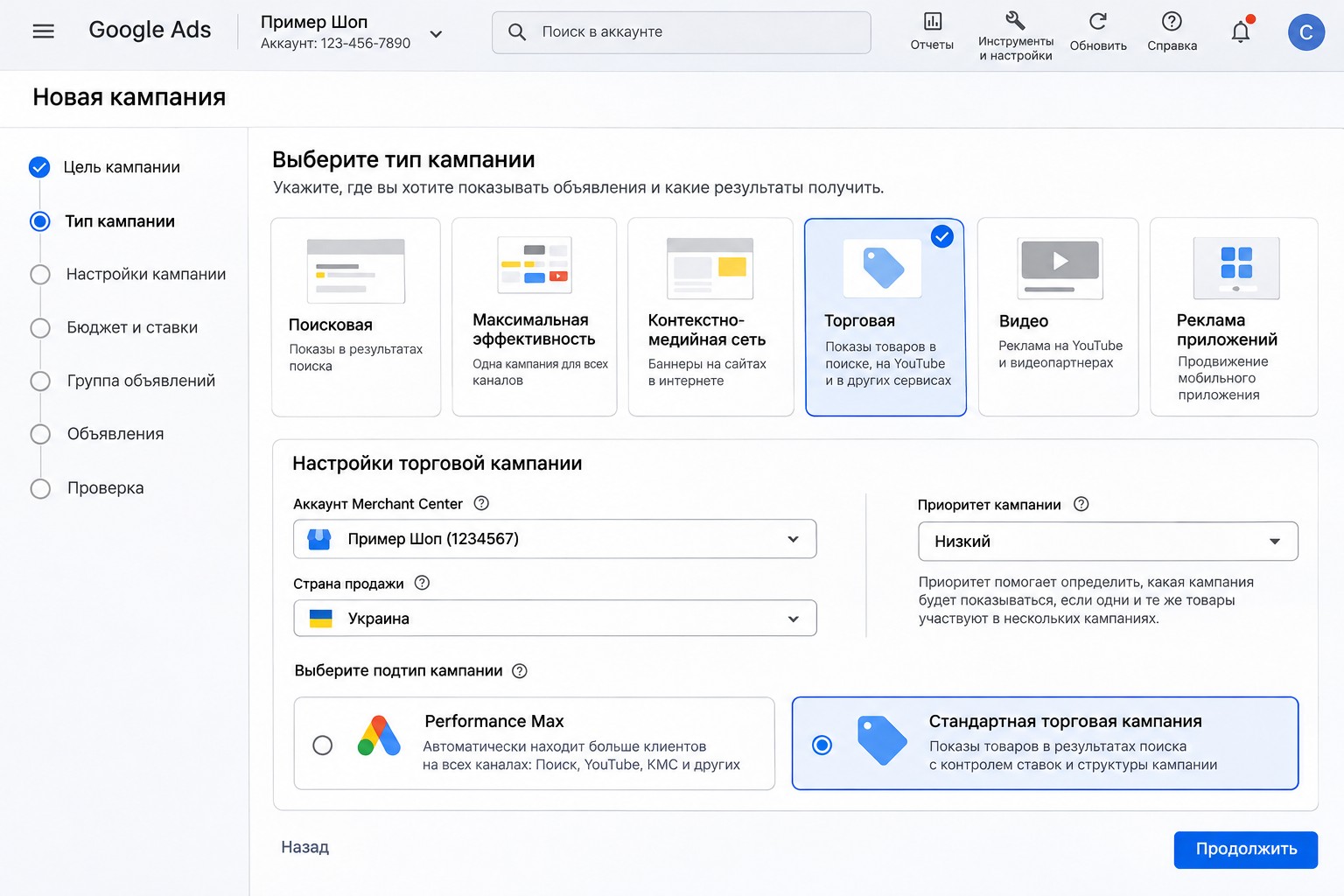
- In Google Ads, click “Create” and choose a campaign.
- Choose the “Sales” objective, or create a campaign without an objective if you want to see every setting.
- Campaign type: “Shopping”.
- Select your linked Merchant Center account and the country where your products are sold.
- Choose Standard Shopping campaign (not Performance Max, which Google suggests by default).
- Name the campaign. I include the type, country and product group, for example “Shopping | US | All products”.
- Choose a bid strategy (more on that below) and a daily budget.
- Set the campaign priority: low, medium or high. Leave your first campaign at low.
- Networks: at launch, I usually uncheck Search partners and the Display Network to get a clean picture of Google Search.
- Locations: only the regions you actually ship to.
- Create a “Product Shopping” ad group and save the campaign.
How to split products into groups
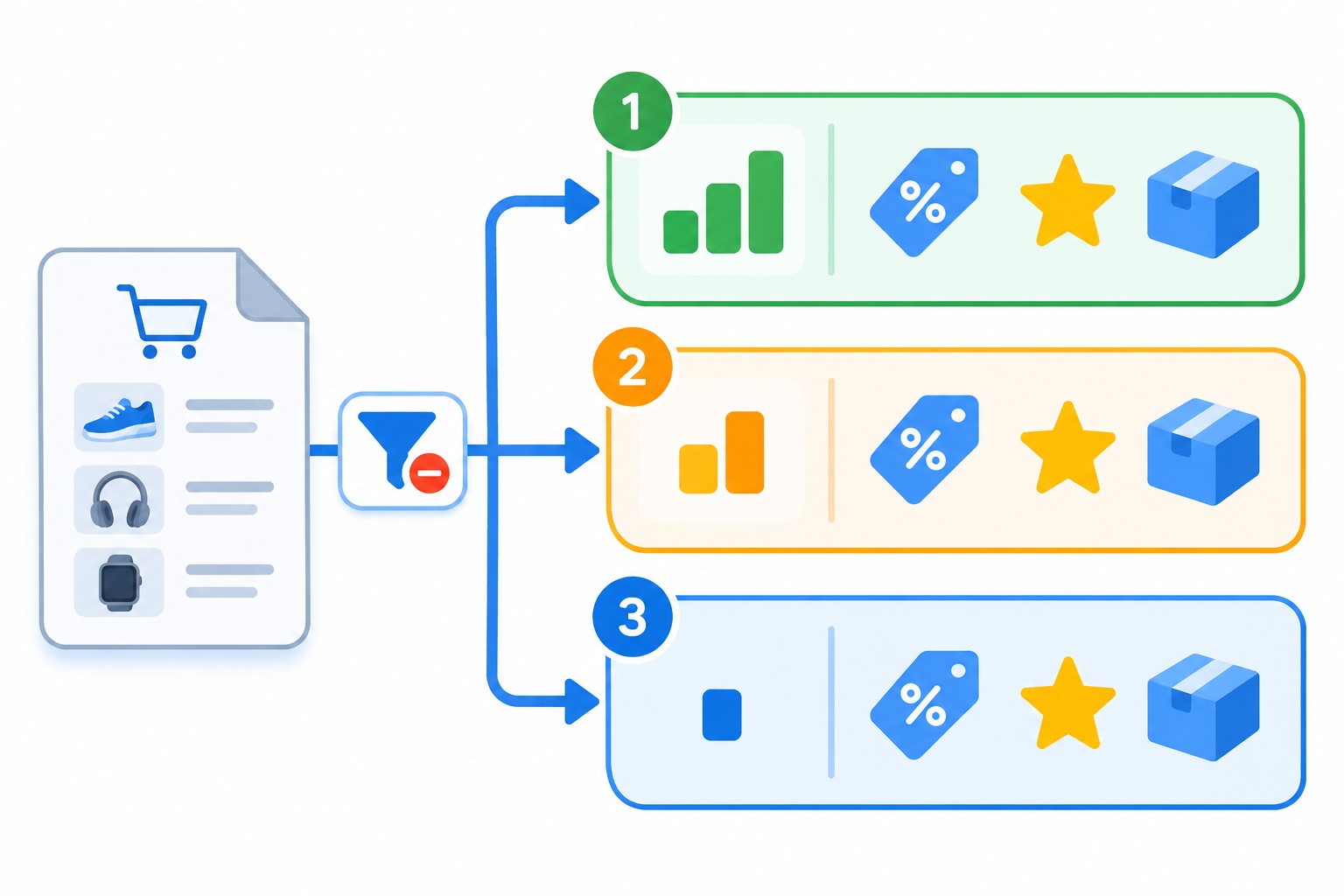
By default, an ad group has one product group, “All products”, with a single bid. That’s fine for a start, but soon you’ll need to split products. Otherwise Google spends your budget on what gets clicked easily rather than what makes a profit.
You can subdivide by feed attributes:
- Google product category;
- product type (your own store category);
- brand;
- condition;
- item ID;
- custom labels 0-4.
Custom labels are the most useful tool here. I ask clients to fill them with what matters to the business: margin (high, medium, low), price range, seasonality, bestsellers. Then high-margin products can get their own bid or even their own campaign.
The structure I use most often
- One campaign for all products at low priority: a safety net so no product is left without impressions.
- Separate campaigns for key categories or high-margin products.
- A separate campaign for bestsellers, if they make up most of your sales.
Important: the same product shouldn’t appear in several product groups within one campaign. Every branch of the product group tree has an “Everything else” node for products that didn’t match other conditions. You can exclude it or give it a low bid. I cover the logic of splitting campaigns in my article on Google Ads account structure.
How campaign priority works
If a product appears in several Standard Shopping campaigns, priority decides which one enters the auction. The high-priority campaign goes first, even if its bid is lower. Priority is used for two things:
- moving important products into a separate high-priority campaign while the general campaign stays at low priority;
- splitting traffic by search term: for example, generic searches go to a high-priority campaign with a low bid, while brand and specific searches are pushed through negative keywords to a low-priority campaign with a high bid.
The second technique is more advanced. I only recommend it once the account already has steady sales.
Bid strategy
Standard Shopping campaigns support manual CPC, Maximize clicks and Target ROAS (return on ad spend). How I choose:
- Starting with no conversion history: manual CPC, or Maximize clicks with a max CPC limit. That way you control cost while data builds up.
- Steady sales (at least a few dozen conversions a month) with order value tracked: switch to Target ROAS. Start with a target slightly below your actual ROAS over the last month, or the campaign will sharply cut impressions.
Negative keywords and search terms
Since there are no keywords, negative keywords are the only way to filter out junk traffic. Once a week, open the search terms report and exclude what doesn’t sell: “free”, “DIY”, “reviews”, “used” if you sell new items, competitor names, and searches for other products.
I explain how to work with this report in detail in my article on the search terms report, and match types for negatives in my guide to Google Ads match types.
Standard Shopping or Performance Max
Performance Max also shows products from Merchant Center, but it adds traffic from YouTube, Gmail, Maps and the Display Network, and it gives you less control. Since late 2024, Google has changed the rules: if the same product is in both a Standard Shopping campaign and Performance Max, they compete on equal terms, and the one with the higher Ad Rank wins. Previously, Performance Max always took precedence.
How I decide:
- Few conversions, a small budget and a need to control search terms: Standard Shopping.
- Lots of conversions, a large catalog and a goal to scale: Performance Max, keeping Standard Shopping for specific product groups such as new arrivals, clearance or low-margin items.
A combination often works best. For more on Performance Max, see my Performance Max setup guide.
How to optimize the campaign after launch
For the first 2-3 weeks I change almost nothing except cleaning up search terms. The campaign needs to collect data, and frequent edits muddy the picture. After that, I work in this order:
- Weekly: search terms. I add negative keywords and look at which searches drive sales. Good search terms show which words are worth adding to product titles in the feed.
- Weekly: product groups. I sort by cost. Products that spend a noticeable amount without sales get a lower bid or move to a separate group. Products with good returns get a higher bid.
- Every 2 weeks: Merchant Center diagnostics. I check for new disapprovals and price mismatches.
- Monthly: the feed. I improve titles of products with many impressions and a low CTR, fill in missing attributes and update custom labels.
- Once conversions build up: I test Target ROAS in one campaign and compare the results with manual bidding.
I also watch impression share. If the campaign loses a lot of impressions due to budget and returns are good, it’s worth raising the budget. If it loses them due to rank, work on bids and feed quality.
Common mistakes
- One “All products” group forever. The budget goes to cheap clicks on low-priced items, while profitable products get no impressions.
- No negative keywords. Ads show for informational searches and searches for other brands.
- Poor product titles in the feed. If the title lacks the product type and key attribute, Google shows it for random searches.
- Target ROAS from day one. Without conversion history, the campaign either doesn’t show or takes a very long time to learn.
- No order value tracking. Google then treats all purchases as equal, and ROAS optimization is impossible.
- Out-of-stock products in ads. If your feed updates rarely, you pay for clicks on products nobody can buy.
Frequently asked questions
How much budget does a Shopping campaign need?
It depends on your niche, average CPC and the number of products. As a rule of thumb, the budget should cover at least a few dozen clicks a day on your main products, or it will take months to collect data. The exact amount is best calculated for your own niche.
Why isn’t my Shopping campaign showing?
The most common reasons: products are disapproved in Merchant Center, the bid is too low, a low-priority campaign loses to another campaign with the same products, or products are excluded in product groups. Start with Merchant Center diagnostics.
Can I add keywords to a Shopping campaign?
No. Ads are driven by feed data, bids, product group structure and negative keywords. That’s why product titles and descriptions in your feed matter so much.
Which is better for a new store: Standard Shopping or Performance Max?
For a new store without conversion history, I usually start with Standard Shopping: it’s more transparent, you see the search terms, and it’s easier to control spend. I add Performance Max once sales data builds up.
Conclusion
Standard Shopping is still the most transparent way to advertise an online store on Google. Prepare a high-quality feed, set up conversion tracking with order value, split products by margin and category, start with manual bids and clean up search terms regularly. Once you have data, move to Target ROAS and test Performance Max.
If you want to check whether your Shopping ads are set up correctly, request a free express audit: I’ll review your campaigns and feed and tell you what to fix first. For more practical walkthroughs, subscribe to my YouTube channel.